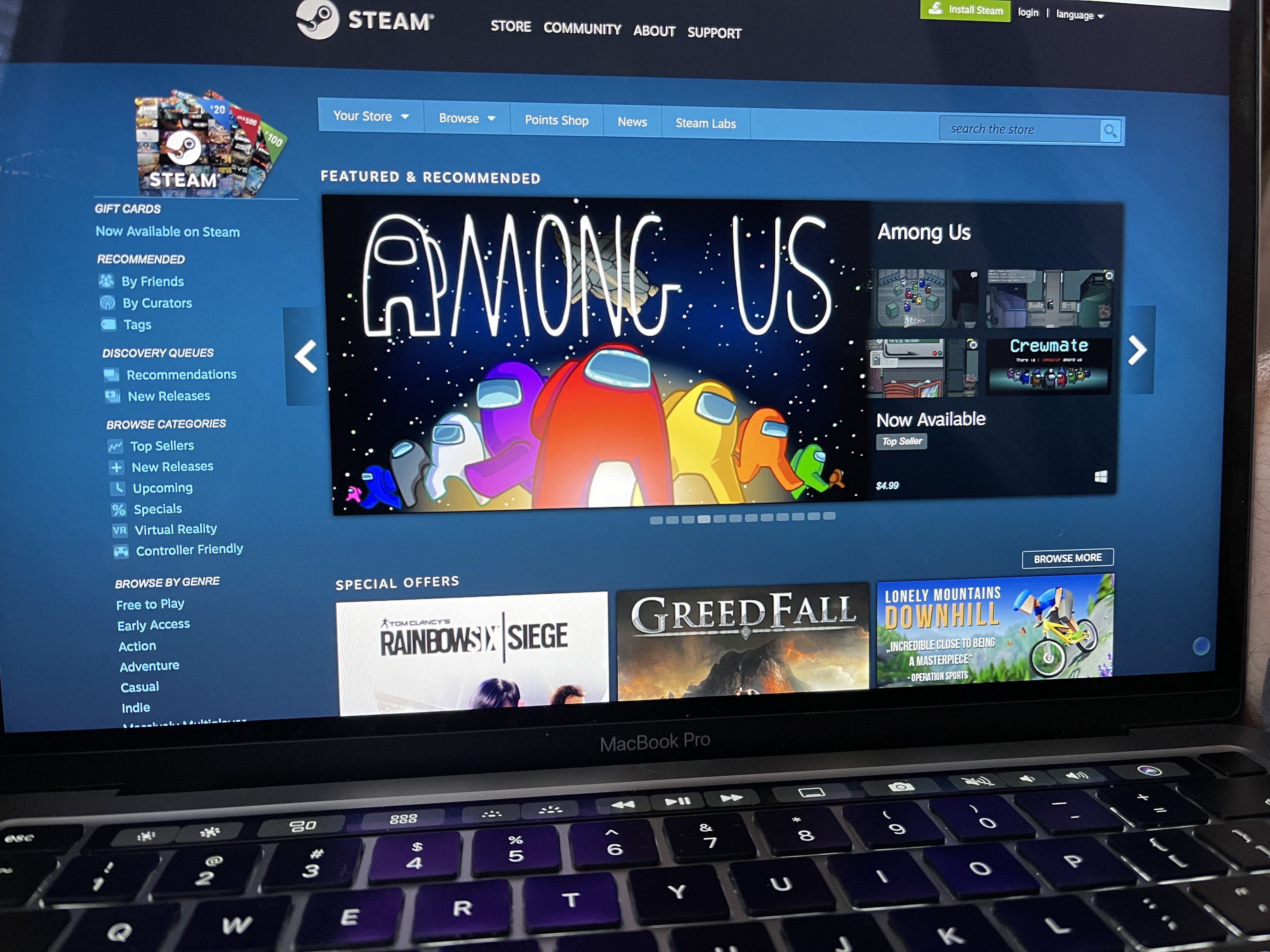
Add some Steam games to your computer in just a few steps.
Steam is one of the most popular online gaming stores for gamers everywhere, and it's not just for PC; you can enjoy Steam on your macOS Monterey too!
Here's how to install and download games using Steam for Mac.
How to install Steam on Mac
If you haven't installed Steam on your Mac already, here's how.
- Go to steampowered.com in your browser.
- Click Install Steam at the top right of the webpage.
-
Choose Install Steam.

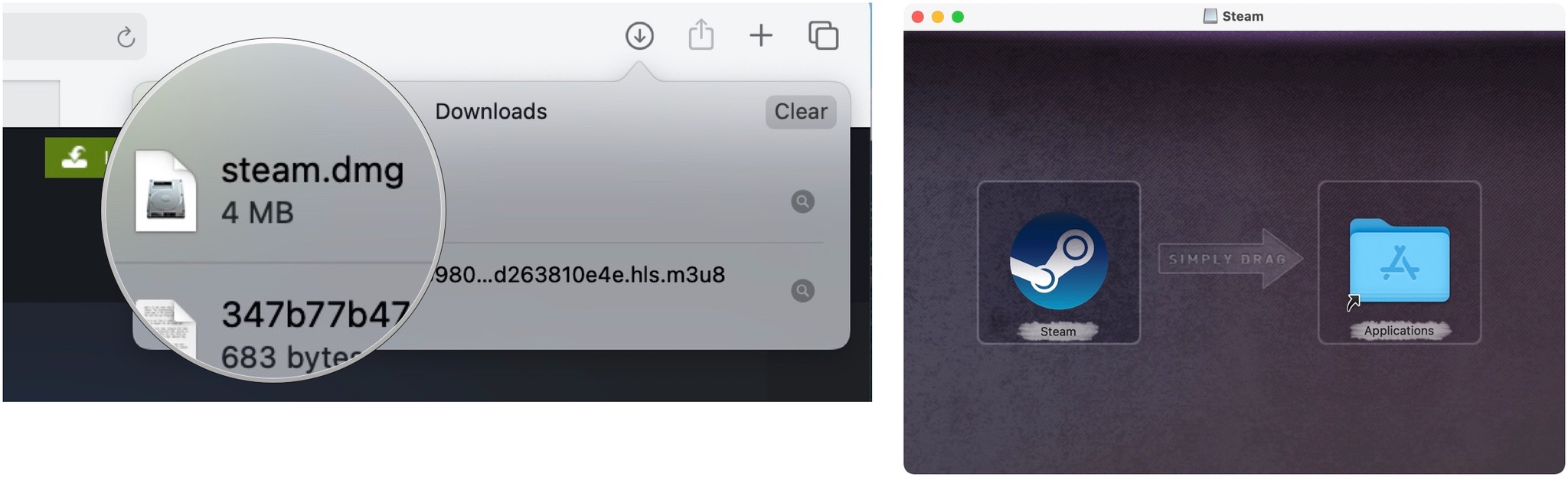
- Click the show downloads button. Depending on the browser, this may open automatically when the file finishes downloading.
- Double-click on steam.dmg to launch the installer.
- Drag Steam into the Applications folder.
-
Exit the window.
How to download a Steam game onto your Mac
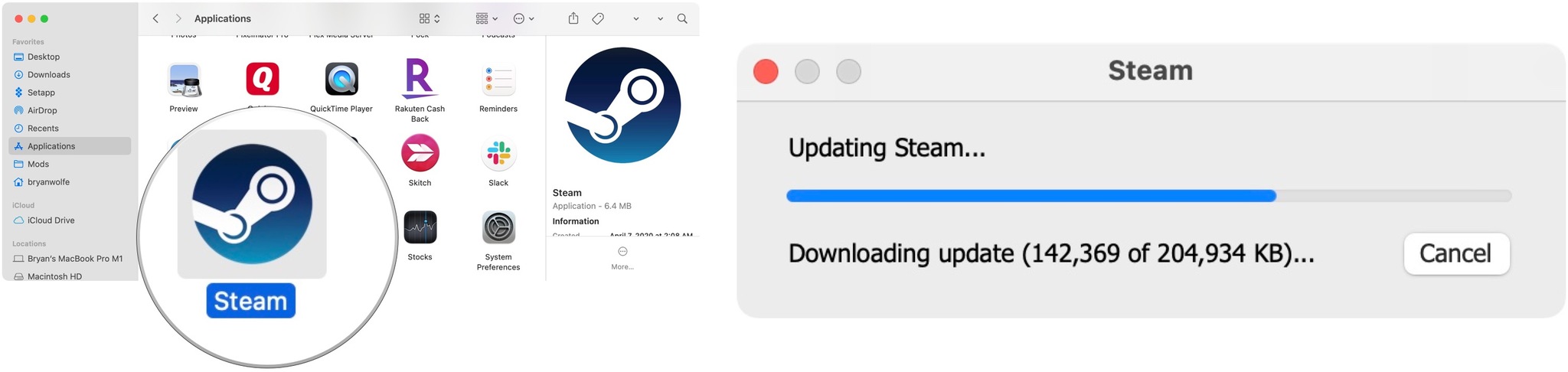
- Launch Steam from the Applications folder.
- Choose Open, if applicable.
-
Wait for Steam to update.
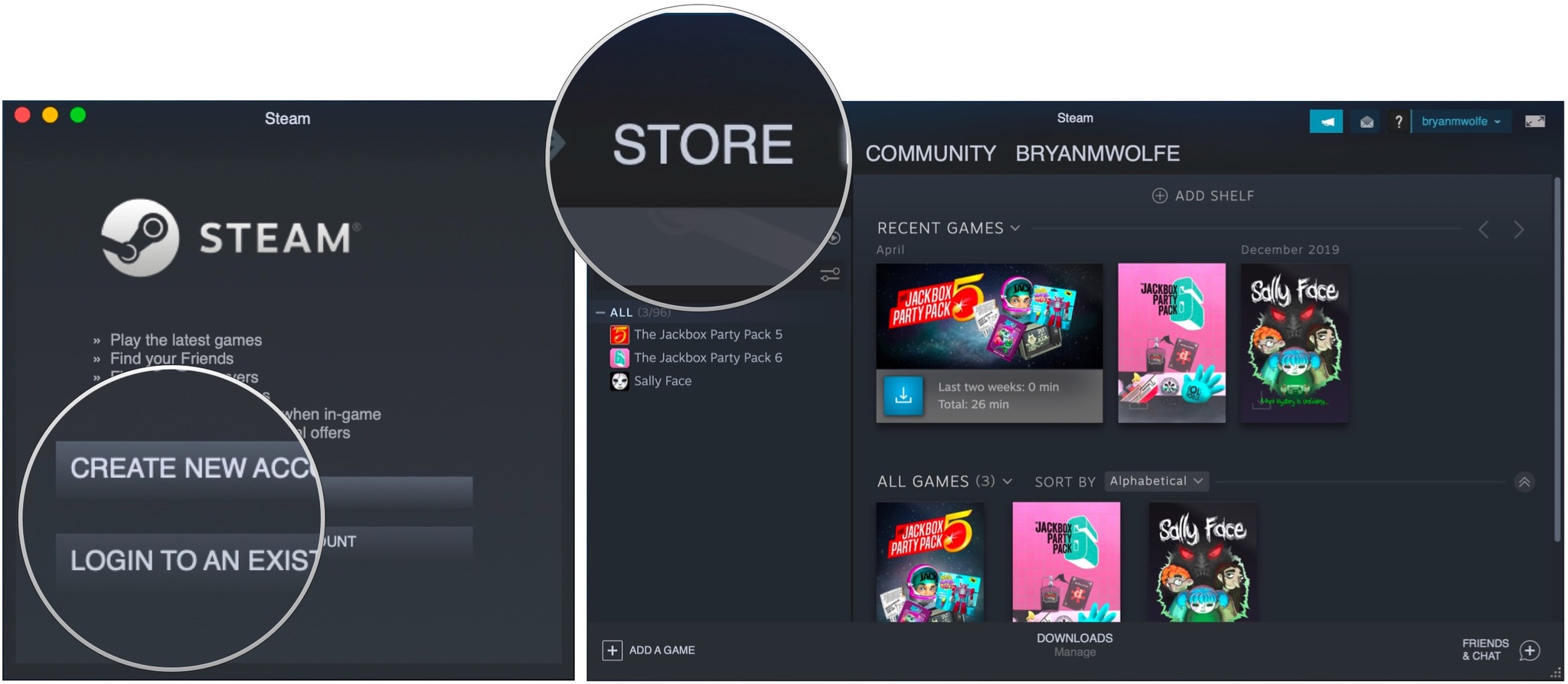
- Tap Create New Account or Log in into an existing account if you have one.
- Go through the necessary steps on the screen.
-
Click Store.
- Browse the store for a game you want to download. First, you'll need to make sure it's compatible with Mac. You'll see the Apple logo on any game that can be played on Mac.
- Click on the title you want to download.
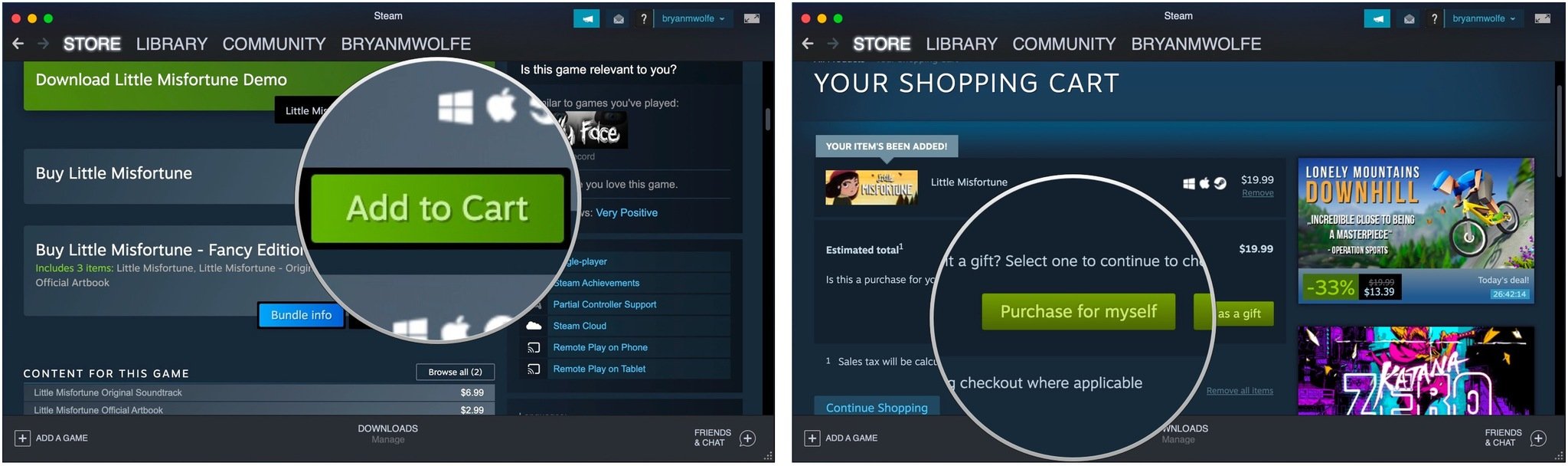
- Choose Add to Cart.
-
Click Purchase for myself.
- Select your payment method. 12.. Fill out your payment information.
- Click Continue.
- Click the checkbox to agree to the terms.
- Click Purchase.
From here, your game will begin to download, and you can start playing as soon as it's done, so go nuts!
Into other games?
Are you more into the Nintendo Switch? Check out every game that's currently available for the platform. Regardless, happy gaming!
from iMore - The #1 iPhone, iPad, and iPod touch blog https://ift.tt/2LEnw42
via IFTTT

No comments:
Post a Comment