Showing posts with label Luke Filipowicz. Show all posts

Sunday, January 02, 2022

Turn your iPad Air 4 into the ultimate machine with a great keyboard case

The iPad Air 4 is a force to be reckoned with. Powered by Apple's A14 Bionic chip, the minimal bezel design, support for the Apple Pencil 2, and a USB-C port, it very well may be the best iPad for a lot of people. Do you know what would make it even better? A great keyboard case. Our iPad Air 4 review mentions that it's finally powerful enough to be used as a laptop in some situations. A keyboard case gives you a better typing experience for writing emails, surfing the web, or working on documents. Here are the best iPad Air 4 keyboard cases.

Our top pick

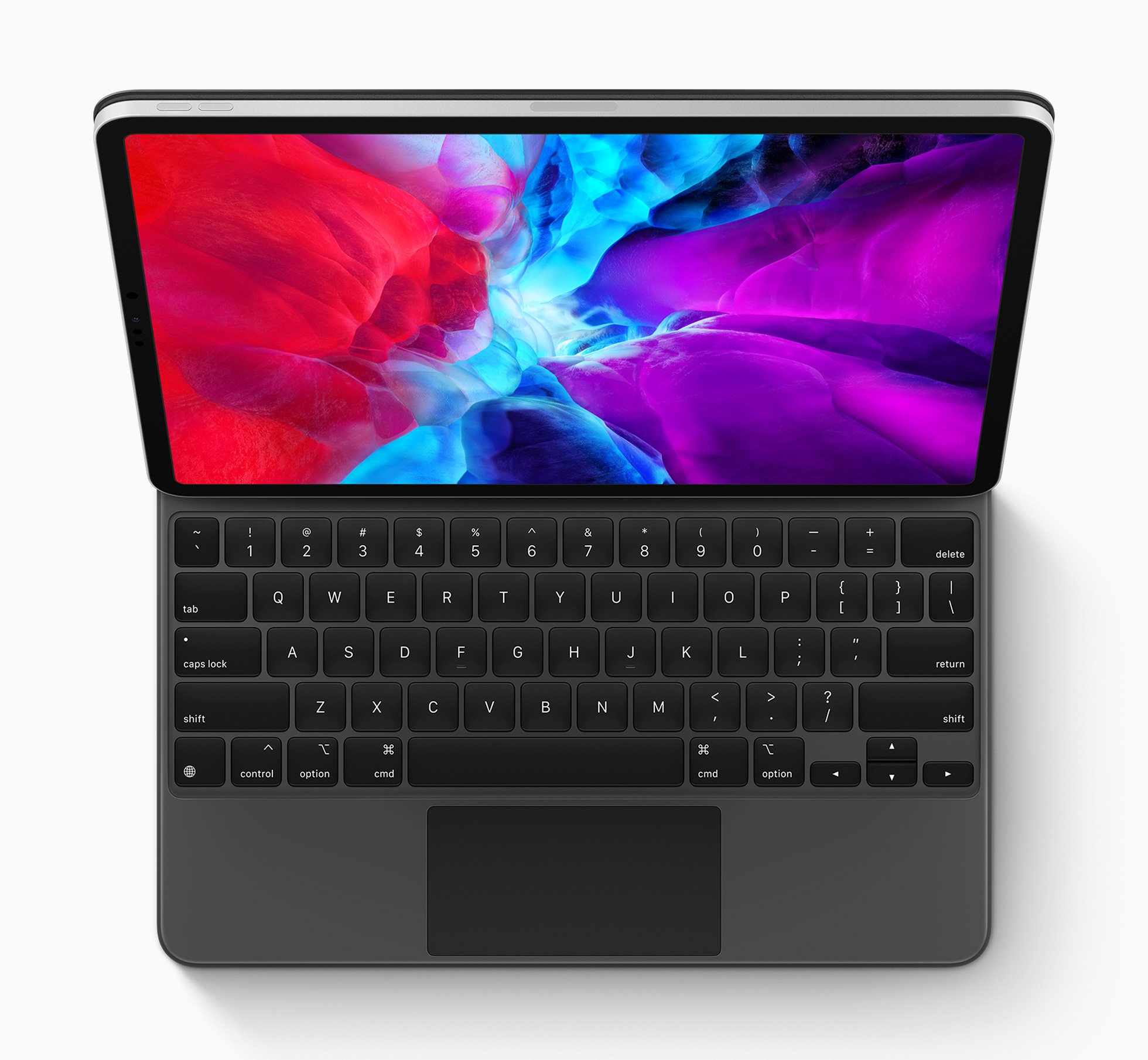
Apple Magic Keyboard for iPad Pro 11-inch
Staff Favorite

Apple devices tend to feel a bit magical, and this keyboard case is no exception. The Magic Keyboard is pricey, but it's the ultimate keyboard case for the iPad Air 4. The beautiful cantilever design, scissor mechanism backlit keyboard, and trackpad for multi-touch gestures and cursor control make it the best overall pick.

$299 at Amazon

$299 at Best Buy

$299 at Apple

The best without a trackpad

Apple Smart Keyboard Folio - Black

This is a full-sized keyboard in a case that offers front and back protection for your iPad Air 4 when not in use. You never need to charge this keyboard, nor do you have to pair it to your iPad Air 4 via Bluetooth. Simply plop it into place and start typing. This is what I call a smart keyboard.

$99 at Walmart

$179 at Best Buy

$179 at Apple

Laptop-like sturdyness

Brydge Pro+ Wireless Keyboard w/Trackpad - Black

The keyboard has Bluetooth 5.0 connectivity, and you can get up to three months of battery life on a single charge. Note that your iPad isn't in a case here; the keyboard has brackets that hold your iPad Pro in place. When you're not using the iPad, you'll get front protection from the keyboard but no back protection at all.

$150 at Brydge

Backlit keyboard

Logitech Folio Touch - Black

The Logitech Folio Touch has a full backlit keyboard that connects via the Smart Connector, so just like Apple's own products, you never have to worry about pairing — connect and start typing. Plus, the back kickstand gives your iPad Air 40 degrees of angle control, meaning whether you're typing, watching a movie, or sketching, you can find the perfect angle.

$151 at Amazon $160 at Best Buy

Detachable keyboard

ProCase iPad Air 4 Keyboard Case with Pencil Holder

The leather exterior and hard plastic bumper around the iPad Air 4 make the ProCase iPad Air 4 Keyboard Case an excellent case to ward off scratches and scuffs. Plus, the keyboard is magnetically detachable, giving you the ability to set up where you want or leave the keyboard at home if you're commuting.

$31 at Amazon

Excellent protection

TYPECASE Touch iPad Air 4 Case - colors vary

The TYPECASE Touch iPad Air 4 Case is a hard clamshell case and a keyboard with a touchpad. The hinge rotates 360 degrees, so you can use your iPad Pro laptop-style or tablet-style without removing the iPad from the case. The keyboard features a row of iOS function keys and 10 backlit colors. The 2.4-inch touchpad makes your iPad Air 4 feel more like a laptop, and it allows you to tap, scroll, and swipe without removing your hands from the keyboard at all.

From $73 at Amazon

Why a keyboard case?

A keyboard case is a convenient option that makes using your iPad Air 4 more laptop-like. If you get a keyboard with a trackpad, you can get even closer to the laptop experience thanks to trackpad support in iPadOS 14. Now on the iPad Air 4, you can use a trackpad for cursor and multi-gesture control, so a keyboard case with a built-in trackpad is ideal. Of course, if you're surfing the web, watching movies, and maybe knocking out some emails, a less expensive keyboard without all the bells and whistles is all you'll need.

Our main recommendation is the Apple Magic Keyboard. We know it's expensive, but it really is the ultimate iPad keyboard case. The cantilevered design is elegant, and it gives you your choice of viewing angles, and the trackpad lets you do so many things quickly, like switch between apps and access the app switcher.

If you want something more reasonably priced, the Logitech Folio Touch is a great option for your iPad Air 4. Its fully backlit keyboard means you can type just about anywhere or any time of day, and since it also uses the Smart Connector, you never have to worry about a cumbersome pairing process.


from iMore - The #1 iPhone, iPad, and iPod touch blog https://ift.tt/2H8qbUZ
via IFTTT

Friday, December 31, 2021

Apple's App Store payments being probed by antitrust regulator in India

Another antitrust probe into Apple's App Store — this time in India.

What you need to know

  • The India Competition Commission (CCI) launched a probe into Apple's App Store payment system.
  • The CCI has 60 days to finish its probe into the matter.
  • Probe is looking into Apple's App Store payment system, commissions, third-party alternatives, and more.

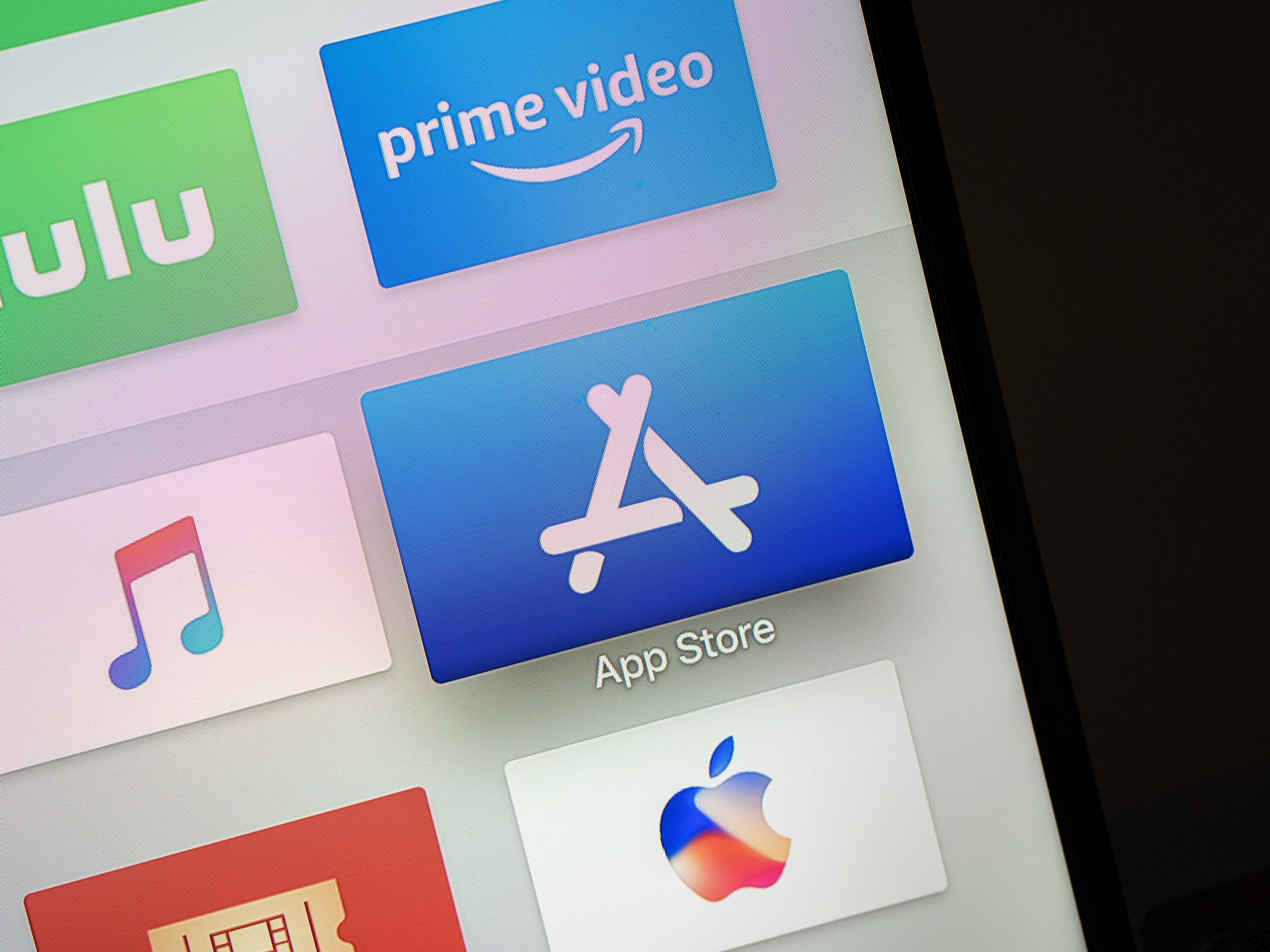
The issue of Apple's App Store requiring app developers to use Apple's propriety payment system has drawn the attention of an antitrust regulator in India. The India Competition Commission (CCI) ordered an investigation into the matter to be completed within 60 days.

In a quote received by TechCrunch, the CCI has said it's looking into excessive commissions imposed on developers that "restrict the choice available to the app developers to select a payment processing system of their choice especially considering when it charges a commission of up to 30% for app purchases and in-app purchases."

The CCI began looking into the App Store when a complaint was filed by the non-profit group, Together We Fight Society. A claim that Apple argued should be dismissed because Apple is too small a player in India. The American company only holds about a 2% market share of the smartphone market in India.

In the order, the CCI said, "At this stage, it appears that the lack of competitive constraint in the distribution of mobile apps is likely to affect the terms on which Apple provide(s) access to its App Store to the app developers, including the commission rates and terms that thwart certain app developers from using other in-app payment systems,"

This new probe in India is just the latest in a stream of antitrust actions that have been targeting Apple and other tech companies, like Google, for a while now. Just two months ago, Russia opened an antitrust case against Apple over App Store payments. And, of course, the high-profile lawsuit between Epic Games — Fortnite developer — and Apple was largely around the App Store's commission on sales through in-app purchases.


from iMore - The #1 iPhone, iPad, and iPod touch blog https://ift.tt/3EKir3c
via IFTTT

Wednesday, December 29, 2021

Get 4K for your Mac with these great monitors

Are you upgrading that high-tech home office and want to check out the best monitors for Mac? Your display may already be gorgeous, but if you're in the market for a second display or even something larger than what you have, a 4K monitor is a massive step in the right direction. If you want to try and maintain the same level of definition as your current display, here are the best 4K monitors for Mac users, but they're especially perfect for the MacBook Air and MacBook Pro.

HDR10 support

LG 27UK850-W Monitor for Mac

Staff pick

One of LG's latest displays, the 4K 27UK850-W is also a great USB-C monitor and features HDR support via two HDMI ports and a DisplayPort, a headphone jack, and two down-stream USB-A ports. It also has excellent viewing angles thanks to its IPS panel, and its grey-to-grey response time is a blazing-fast five milliseconds.

$614 at Amazon$420 at B&H

Entertaining experience

BenQ EW3280U 32-inch 4K Monitor

For high-quality visuals and next-level sound, you can't beat the BenQ EW3280U. One of our favorite USB-C monitors for Mac, this bad boy is equipped with 4K UHD resolution and 95% DCI-P3 wide color gamut for a crystal clear picture and vibrant colors. It also comes with True Tone treVolo Audio that includes multiple speakers and a built-in 5W subwoofer, so you can expect an exceptional sound experience as well. This makes it one of Mac's best 4K monitors for streaming video, gaming, and even video editing work.

$700 at Amazon$700 at Walmart

USB-C connection

HP Z27n G2 LED Display

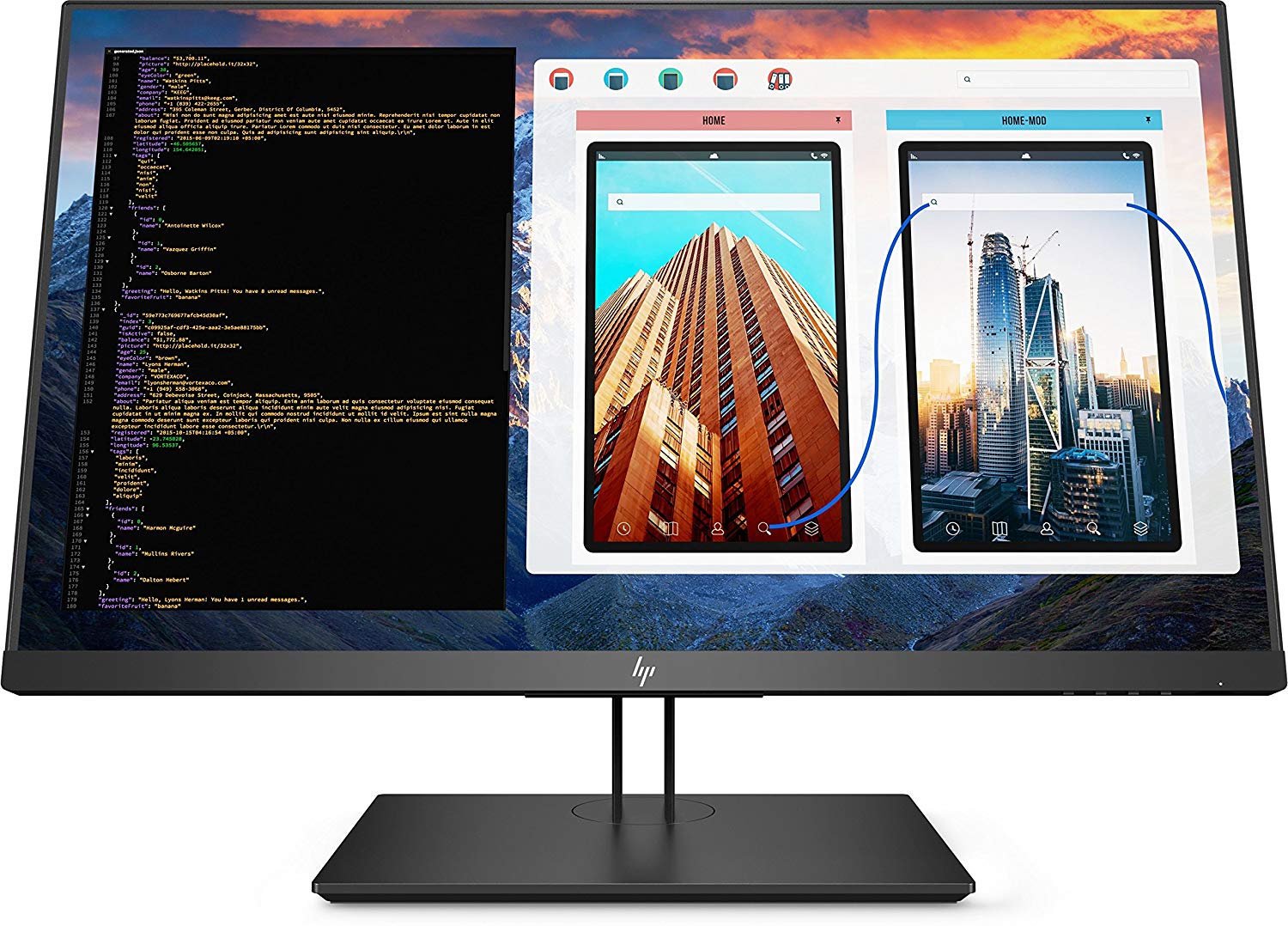
HP's new Z27 4K monitor may just take over the top spot after more testing since it features USB-C and DisplayPort, mini DisplayPort, and HDMI. Its colors are immaculately accurate, and with a grey-to-grey response time of 8 milliseconds, you won't see any hiccups while you're working or gaming.

$639 at Amazon

Upgrade pick

BenQ 32-inch, 4K UHD Monitor

BenQ's 32-inch monitor is somewhat expensive. Still, it offers excellent features for the creative pro, like several different modes (including Darkroom) for photo and video editing, a built-in SD card reader, as well as a 5-port USB hub, HDMI ports, and mini and regular DisplayPorts.

$700 at Amazon$700 at B&H

Thunderbolt 3 Monitor

LG 32UL950-W 32-inch Ultrafine 4K Monitor

LG's big 32-inch 32UL950 is not only a Thunderbolt 3 monitor, meaning you can daisy chain monitors together, but also has quite a few ports. With one Thunderbolt 3 port, USB-A, an HDMI, and multiple DisplayPort ports, this monitor has tons of connectivity to attach all your favorite devices. Plus, its ultrafine 4K display and high color fidelity make this screen look amazing right out of the box.

$1,300 at Amazon

A couple of suggestions

Of course, when it comes to using a newer MacBook, like the MacBook Pro or MacBook Air, you're going to want it to come with a USB-C port unless you have a USB-C hub. You're also going to want the flexibility of having a variety of different ports. That's where the LG 27UK850-W comes in. Since it can charge your MacBook, MacBook Air, or 13-inch MacBook Pro, and it also features two USB-A ports, two HDMI ports, a display port, and a headphone jack, it is not only a fantastic monitor but a whole hub for connectivity. This is our favorite pick out of the best 4K monitors for Mac.

When it comes to excellent 4K monitors, the BenQ EW3280U is hard to beat, with excellent bang for your buck. Its combined features and price make it a great consideration.

With so many great options, it may be hard to choose. Browse these choices, compare, and make the right pick for your Mac!


from iMore - The #1 iPhone, iPad, and iPod touch blog https://ift.tt/2uKHHmr
via IFTTT

Tuesday, December 28, 2021

There's a lot in store for the Apple Watch in 2022

Let's take some wild guesses and educated guesses at what's in store for the Apple Watch in 2022.

It's near the end of the year, and naturally, that means the iMore team is thinking about what Apple has in store for its products in the coming year. I'm going to focus on the Apple Watch.

After the year Apple Watch had in 2021, it's likely going to be pretty easy to come up with a list of features I want. The best Apple Watch will always be the most useable and convenient watch, but there's plenty that could make it better.

I'm breaking this up into two sections; what I want to see and what I expect to see. What I want to see is where I get to dream big and suggest some changes that I may want but might not be a realistic expectation. What I expect to see is a more conservative guess at what we might actually see from the Apple Watch in 2022.

Now that 2021 is in the books let's throw caution into the wind as we guess what's in store for the Apple Watch in 2022.

What I want to see from Apple Watch in 2022

Apple Watch Redesign

I know last year we got a lot of rumors about a redesigned Apple Watch that never came to fruition, and I wasn't necessarily super stoked on the direction the rumors were showing, but that doesn't mean that I don't think a redesign would be awesome.

The Apple Watch hasn't been significantly redesigned since its inception — outside of some increases in the case and screen size — so a new look for the Apple Watch would definitely make more than a few heads turn. I'm not necessarily going to guess exactly what the redesign would be, but whatever it is, needs to be more ergonomic. I don't want a big square edge hitting my wrist when I bend my wrist back and I'll welcome any design that changes that.

watchOS 9 will be big!

I want watchOS to be a much bigger update in 2022. It's not like watchOS 8 is bad, on the contrary, it allows you to get a lot more accomplished from your wrist than ever before. But, it was lacking any big breakout features that we've seen before.

Blood Glucose monitoring, a widely enhanced Mindfulness app, a redesigned Home screen that makes better use of the new size of the Apple Watch Series 7, are just a few directions I want apple to go in 2022 with it's Apple Watch software.

In any case, I want watchOS 9 to have big new features that make people's lives easier and help people keep a healthy mind and body.

Rugged Apple Watch

My last big wish is that we do see the rumored Rugged Apple Watch. I know it's a smaller market, but people who do extreme sports would love to be able to track their sports in a safe and efficient way, and Apple certainly has the means to make it happen.

Before you say it, yes, I know you can buy rugged cases for your Apple Watch already, but imagine if a Rugged Apple Watch was built from the ground up with much better protection in mind. The water resistance could be increased, the design could be bigger and bulkier to accommodate a bigger battery, and yes, the Rugged Appel Watch could even come with different sensors that are better and track certain extreme sports.

I really think this is a market that Apple is currently missing from its lineup, and t could be really awesome if they decide to tackle it.

What I expect to see

Apple Watch SE 2

I love the Apple Watch SE. It brings lots of the awesome utility of the Apple Watch to a lower price point, which I think is so important for a device that has the potential to save lives.

A two-year cycle for an Apple Watch SE refresh is a good timeline to ensure that the product stays relevant and updateable with the newest software and security updates. The Apple Watch SE 2 would likely feature an upgrade to the processor in the Apple Watch Series 7 (which is the same as the Series 6), but would likely be behind the Apple Watch Series 8.

I don't think the Apple Watch SE would change to much other than a processor change, and potentially a size upgrade to the new 41mm and 45mm case size, but even that wouldn't be necessary to make the Apple Watch SE 2 a stellar device.

watchOS 9 and Apple Watch Series 8: Blood Glucose monitoring

While i want to see a huge update and upgrade in 2022, I think it's much more realistic to expect one big new feature. I know the rumors surrounding it tend to be nebulous at best, but we likely can assume that Blood Glucose monitoring is being worked on for the Apple Watch.

If Apple manages to put Blood Glucose monitoring into the Apple Watch Series 8, that will not only be a huge accomplishment, it will likely mean a whole new app and interactions with the Health app will be the one big feature added to watchOS 9. That's not to say that some basic apps might not get a redesign or some improvement, but I expect watchOS 9 will focus heavily on that feature.

On top of that, it's likely what a lot of the Apple Watch Series 8 will be about too, since, my best guess is new sensors would need to be designed and put into the Apple Watch to make it a reality. Once again, I think this achievement would be so huge, that it's the only major upgrade we will see to the Apple Watch Series 8.

See you in 2022!

All in all, 2021 was a pretty good year for the Apple Watch, and 2022 has the potential to be even better! Happy New Year and we will see you in 2022!


from iMore - The #1 iPhone, iPad, and iPod touch blog https://ift.tt/3qxjKNS
via IFTTT

Monday, December 27, 2021

Apple Watch year in review: what we saw in 2021 for Apple's wearable

The Apple Watch in 2021 had a pretty average year, but don't sleep on the Apple Watch Series 7.

We're in the twilight of 2021, and it's time to look back at what Apple accomplished these past twelve months — specifically with the Apple Watch. Of course, we only had one new model this year, the Apple Watch Series 7, but don't forget that watchOS is a big part of what makes an Apple Watch, well, an Apple Watch.

So, as we prepare to ring in 2022, let's look back at what happened with the Apple Watch this year.

watchOS 8 preview at WWDC

The first major stop for the Apple Watch in 2021 came at WWDC with the introduction of watchOS 8. I jumped on the developer beta right away and started tinkering around with the new update. My first impressions of the new software were pretty mild, and there was no real stand-out feature in watchOS 8 that really wowed most people, or me for that matter.

First impressions are important, but as I used watchOS 8 more and more, I understood what Apple was going for with watchOS 8. You see, it wasn't an update that was meant to wow anybody, but rather a solid quality of life update that lets you do more from your Apple Watch.

Messaging is easier thanks to the ability to use Scribble, Dictation, and emoji all in the same message. Focus lets you set your customized Do Not Disturb mode across all your devices with the tap of a button. Sharing photos from your Apple Watch is now possible and quite simple. And, the Home app got a huge update making it way easier to control all your HomeKit accessories.

It's all about being able to do more and have more control on your wrist, so even though the Mindfulness app with the new Reflect feature is a little lackluster, all the little improvements make your Apple Watch better. And, if that isn't a successful update to watchOS, I'm not sure what would be.

Rumor has it...

Before we get into talking about the best Apple Watch Apple puts out every year, we have to address the elephant in the room: rumors.

There were a ton of rumors surrounding the Apple Watch Series 7 before it came out, most notably, that the Apple Watch was getting a redesign, including flatter edges and a more squared-edged design. Of course, all these rumors took off, and people were really hyped, myself included, and when the Apple Watch Series 7 launched, lots of people were disappointed.

It sucks because the Apple Watch Series 7 is a great Apple Watch, but it was needlessly marred by many expectations of people whose expectations became too high based on some rumors. I'm including myself in this group as well.

The hype machine is very real, and as someone who covers Apple tech day in and day out, it was a good reminder that all rumors, no matter how credible the source has been in the past, shouldn't influence any expectations.

Don't sleep on the Apple Watch Series 7

With that out of the way, let's talk about the Apple Watch Series 7, which this year became bigger than ever before.

Well, there was no total redesign. The Apple Watch Series 7 did make the case bigger by a fraction — the Series 7 comes in 41mm and 45mm cases instead of the 40mm and 44mm we've seen in the last few years. That's not a lot, but the screen also gets bigger when you combine that with the smaller bezels.

The screen feels super present on your wrist now, and it makes using the Apple Watch better — especially for people with eyesight issues or mobility problems. The entire UI feels a little less cramped and easier to read and access. From a usability perspective, it's low-key the best update to the Apple Watch in years, and I don't think it gets enough credit.

Now, that isn't to say that there isn't some valid criticism of the Apple Watch Series 7. The battery life is the same as last year's Series 6 (although it does charge faster, which is nice), the processor isn't upgraded, and there are no new health sensors either. I still wouldn't recommend that anyone upgrade from a Series 6 to a Series 7. There's nothing about the Apple Watch Series 7 that makes it a "must-have" device, but you don't have to reinvent the wheel every time.

Bottom line: the Apple Watch Series 7 is great and probably didn't quite get a fair shake due to all the hype leading up to its release. It doesn't do anything flashy and new, but it does have everything we've come to love about Apple Watch.

Excited for the future

The Apple Watch in 2021 may not have been the most exciting year the device has seen, but all the improvements in watchOS 8and the Apple Watch Series 7 still showed us that the Apple Watch remains a powerful extension of the Apple ecosystem. I'm going into 2022 with a lot of hope that the Apple Watch will have another good year, but certainly trying to keep my expectations in check in the future.


from iMore - The #1 iPhone, iPad, and iPod touch blog https://ift.tt/3Fz6UF8
via IFTTT
Sunday, December 19, 2021

Editor's Desk: Hey, Siri, play some holiday music

As the holidays approach, Apple Music gets a new plan, and some Apple anniversaries need to be recognized!

Whether you celebrate Christmas or not, December 25 is on its way, and although Apple news is doing its typical holiday slowdown, that doesn't mean iMore wasn't busy. This week we saw Apple release some new software, including the Apple Music Voice Plan, and there were some pretty significant Apple anniversaries.

A new Apple Music plan will have you asking Siri for a lot

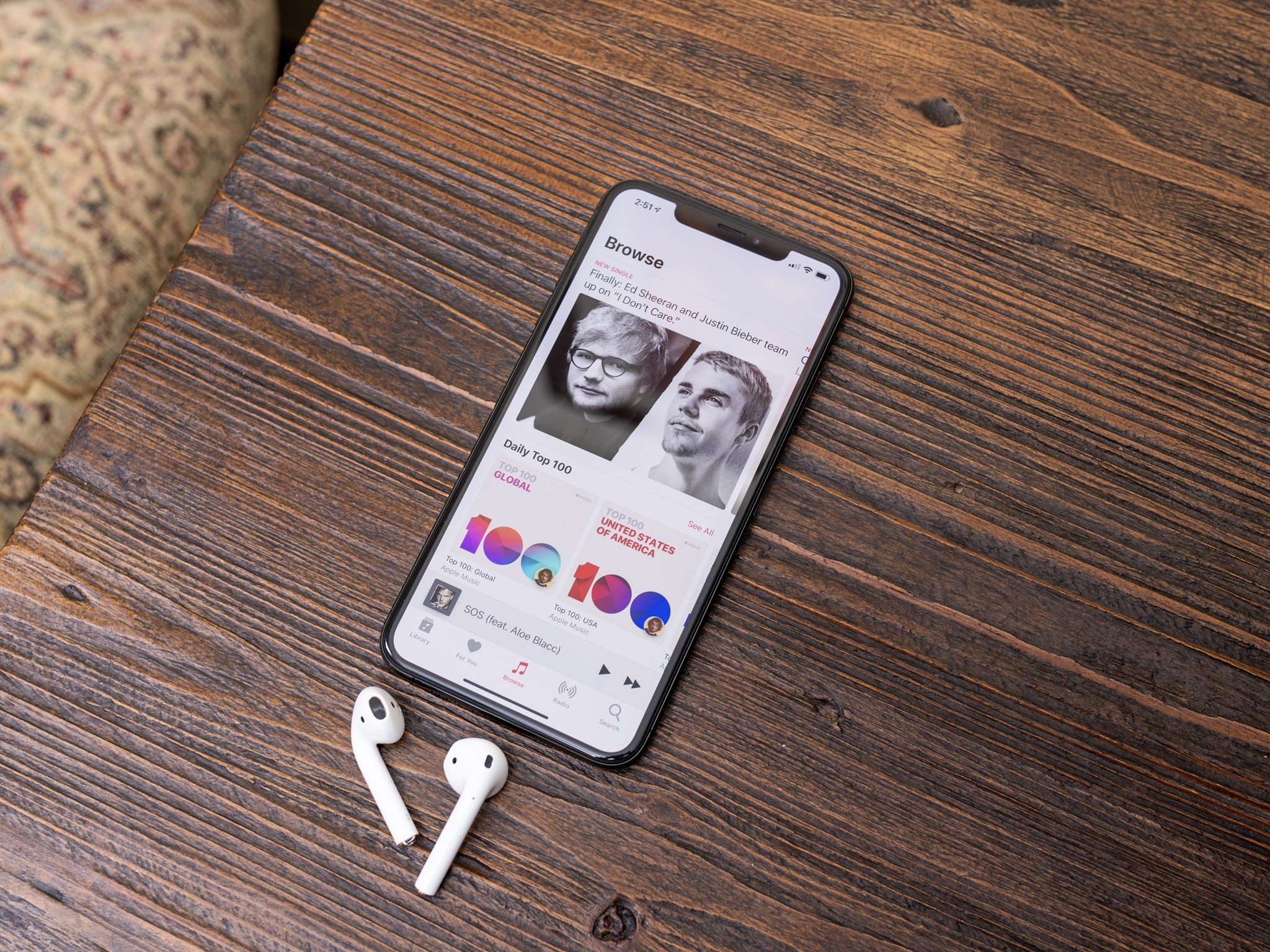
Announced a few short months ago, the Apple Music Voice Plan is a new subscription for Apple's music streaming service that is cheaper than its individual plan coming in at only $5 a month. However, as the name suggests, the way you interact with Apple Music on the Apple Music Voice Plan is mostly by using Siri.

I've been using the new plan since iOS 15.2 launched and figuring out all the quirks on how to use the Apple Music Voice Plan. While it's only been a few days, as an early assessment, I definitely see the use case for this plan. It's for very casual listeners who maybe only listen to music while doing tasks or entertaining company.

The good news is Siri is pretty good at controlling Apple Music and has been for a while. Tell Siri to play a song or the latest album from your favorite band or one of the many Apple Music playlists, and the music starts right away. You still have access to your entire personal music library, and you can still control playback by touch on your iPhone or iPad.

As I use it more over the holidays, I'm sure I'll have more to say about it, so stay tuned.

Some Apple anniversaries

Can you believe it's been one year since the AirPods Max shocked the world with its $550 price tag?

iMore contributor, Joe Wituschek, took some time this week to write about how much he's loved using his AirPods Max over the past year, despite the price point being high.

"So, while the $549 has been seen as a high price for many, it has held its own when you compare it to the quality and experience you get out of the headphones once you put them on."

As someone who has been quite fond of Apple's newest basic AirPods — AirPods 3 — I certainly understand the excitement Joe has for these headphones.

On top of the AirPods Max being a year old, this month also marks the AirPods' fifth anniversary. Looking back on just how much has changed in the wireless earbud market in the last five years, it's hard to argue Apple's influence over the product category. Every major audio company has multiple sets of wireless earbuds, and the amount of direct AirPods knock-offs in the market is astounding.

Enjoy the holidays

I won't be writing to you all again until the new year, and I'm certainly excited for what 2022 has in store for us Apple fans. If you celebrate Christmas, I hope it's joyous for you and your loved one. If you don't celebrate but are taking some holiday time, I wish you a restful and relaxing holiday. And, if it's just another day of the week for you, I hope you have a wonderful couple of weeks before the new year!

Take care, everyone!

- Luke Filipowicz


from iMore - The #1 iPhone, iPad, and iPod touch blog https://ift.tt/3sk9J91
via IFTTT

Charge your Apple Watch and iPhone at the same time with these great stands

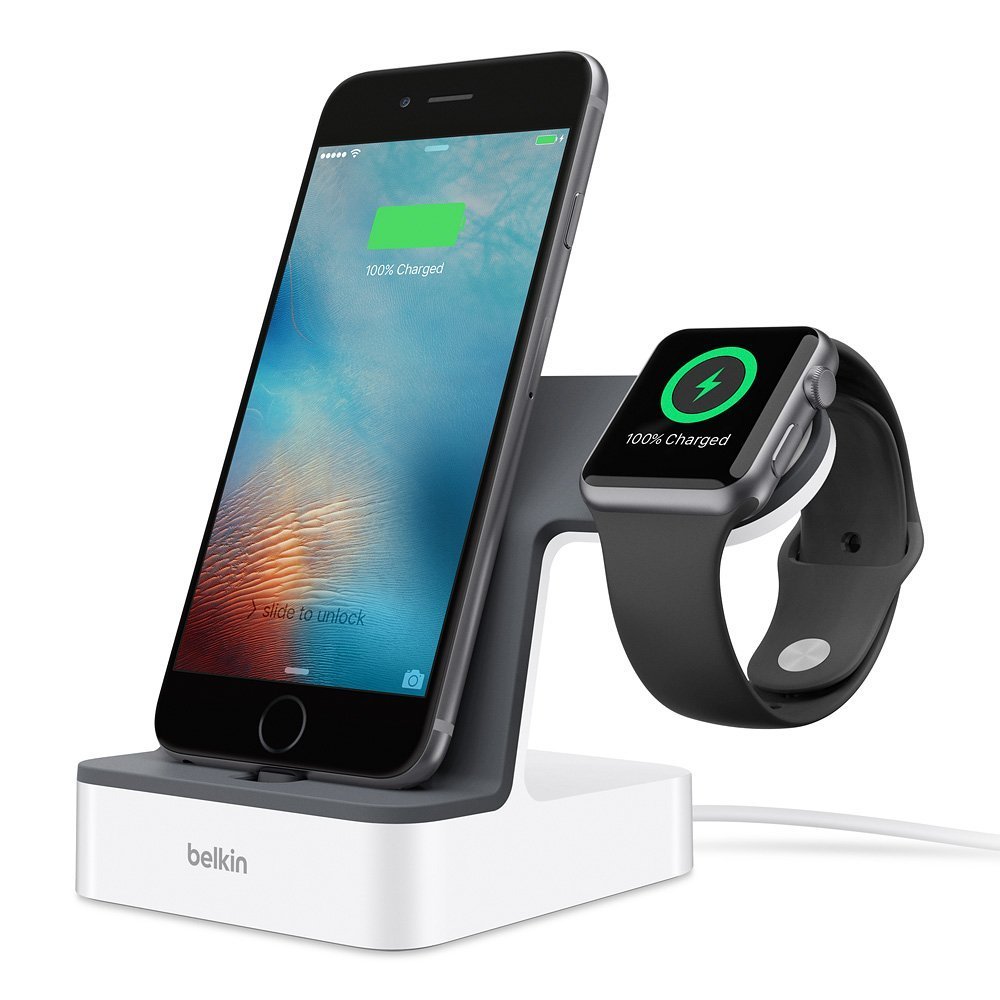
If you're reading this, then you most likely use your iPhone 13 and Apple Watch Series 7 every day, and that means you constantly have to charge your iPhone and Apple Watch to keep up with you each day. If you have a small workspace or a tiny bedroom, dealing with tangled cords can be a nightmare. If you charge your iPhone and Apple Watch together on a stand, not only do you save room, but you don't have to worry about leaving your devices in two different places. Here are our favorite charging stands that let you charge your iPhone and Apple Watch together.

One cable simplicity

Belkin Powerhouse Charge Dock for iPhone and Apple Watch — White

Staff favorite

The Belkin Powerhouse Charge Dock is one of the most elegant solutions for simultaneously charging your iPhone/iPod and Apple Watch. The best part is you only need one cord to power both the Lightning connector for your iPhone and the Apple Watch's magnetic charger. Plus, the Lightning connector's height can be adjusted, so even if you have a heavy-duty case, you'll be able to charge your iPod no problem.

$100 at Amazon $81 at Best Buy

Best for iPhone 12 and iPhone 13

The MagSafe Duo Charger

This is Apple's solution to charging two devices at once, with its new MagSafe system for the iPhone 12 models. The one side of the MagSafe Duo charger is meant for your iPhone or AirPods, while the other side is a perfect fit for your Apple Watch. Plus, if you plug the charger into a 20W charger, you'll get to take advantage of the 15W charging power that MagSafe can deliver to your iPhone.

$129 at Apple

3-in-1 charging

The Nomad Base Station Apple Watch Edition

If you really want the closest experience you can get to what Apple's canceled AirPower charging mat was promising us, the Nomad Base Station Apple Watch Edition is probably the closest you'll get. With enough space on the wireless charging pad for two devices — your iPhone and AirPods — the Nomad Base Station Apple Watch Edition has a built-in charger for your Apple Watch.

$140 at Best Buy $150 at Nomad

Great for AirPods, too!

mophie 3-in-1 Wireless Charge Pad

With the ability to charge your AirPods, iPhone, and Apple Watch simultaneously, the mophie 3-in-1 Wireless Charge Pad is a great solution to keep everything charging in one place. It charges your iPhone up a 7.5W, so it won't be too long before you're ready to go, and it even has a little divet for the AirPods, so you know exactly where to put them to have a good connection.

$78 at Amazon $78 at Best Buy

2-in-1 charger on a budget

Anker 2-in-1 PowerWave+ wireless charging station

Anker excels at making budget accessories that work well. On this stand, your iPhone will be able to take advantage of 10W Qi charging, and the second pad also supplies 10W for AirPods. Of course, you have to provide your own charging cable and power brick to charge your Apple Watch, but the second pad pops up and holds the charger in place for you to use your Apple Watch in nightstand mode while it charges.

$20 at Amazon

Perfect for media viewing

The Mercase Apple Watch Nightstand

It functions as a charging station for your Apple Watch and also gives you a place to rest your iPhone in landscape mode, so if you're watching a YouTube video at your desk or taking in a movie, your iPhone sits in an optimal position. While the Mercase Apple Watch nightstand doesn't have a dedicated place to put your iPhone Lightning cable, you could still easily charge your iPhone by plugging it in. It just might not look as pretty as some other options on the list.

$16 at Amazon

iPad Compatible

ZVEdeng 2-in-1 Stand

Made from aluminum, the ZVE stand looks great and is pretty durable. It even has a few safeguards to prevent damage to your iPhone in the way of two silicone strips that prevent the back of your phone from making contact with the stand itself. Plus, it even has a lip that allows you to rest your iPhone in portrait or landscape orientation, and when you're not charging any devices, it can also function as an iPad stand.

$17 at Amazon

Apple canceled AirPower

Apple's AirPower charging mat was going to be one of the best solutions available for people who wanted to charge their iPhone and Apple Watch simultaneously — and it was even going to have the ability to charge AirPods at the same time. Unfortunately, Apple canceled AirPower because AirPower "will not achieve our high standards," meaning people have had to find other solutions to meet their charging needs. The MagSafe Duo allows you to charge both your iPhone and Apple Watch simultaneously, and it's a fantastic iPhone 12 charger because it offers incredible power, which allows the iPhone 12 to fast charge.

Why get a stand?

A stand that allows you to charge your best iPhone and Apple Watch simultaneously in the same place does wonders to combat stress. Not only will it help you keep cables from lying around everywhere, but it also keeps your devices in the same place, so you don't have to forget where you put your Apple Watch down to charge.

If you have the money, we're a big fan of Belkin's Powerhouse Charging Dock. It not only charges your Apple Watch and iPhone but also has a minimal footprint, making it easy to fit on your desk, bedside table, or anywhere else you might put it.

If you're more concerned about price, the ZVEdeng 2-in-1 Stand provides the perfect place to store your iPhone and Apple Watch when you want to fill them full of juice. Plus, the stand is large and sturdy enough, even to hold an iPad.


from iMore - The #1 iPhone, iPad, and iPod touch blog https://ift.tt/2zNRkaN
via IFTTT

Friday, December 17, 2021

Here's how the new Apple Music Voice Plan works

Curious about the Apple Music Voice Plan? Here's how to use it and everything else you should know!

In iOS 15, you can now subscribe to the Apple Music Voice Plan, which is the cheapest plan that Apple offers for its music streaming service at $5 per month. The standard Apple Music subscription is a bit more at $10 per month. With the cheaper Apple Music Voice Plan, subscribers still have access to the entire Apple Music library, but the primary control over the app is all done through Siri.

If you've used Siri on your best iPhone to interact with Apple music before, then the Apple Music Voice Plan won't feel foreign, but if you are curious about how it all works, I'm here to break it all down. Here's how to use the Apple Music Voice Plan.

How the Music app works with the Apple Music Voice Plan

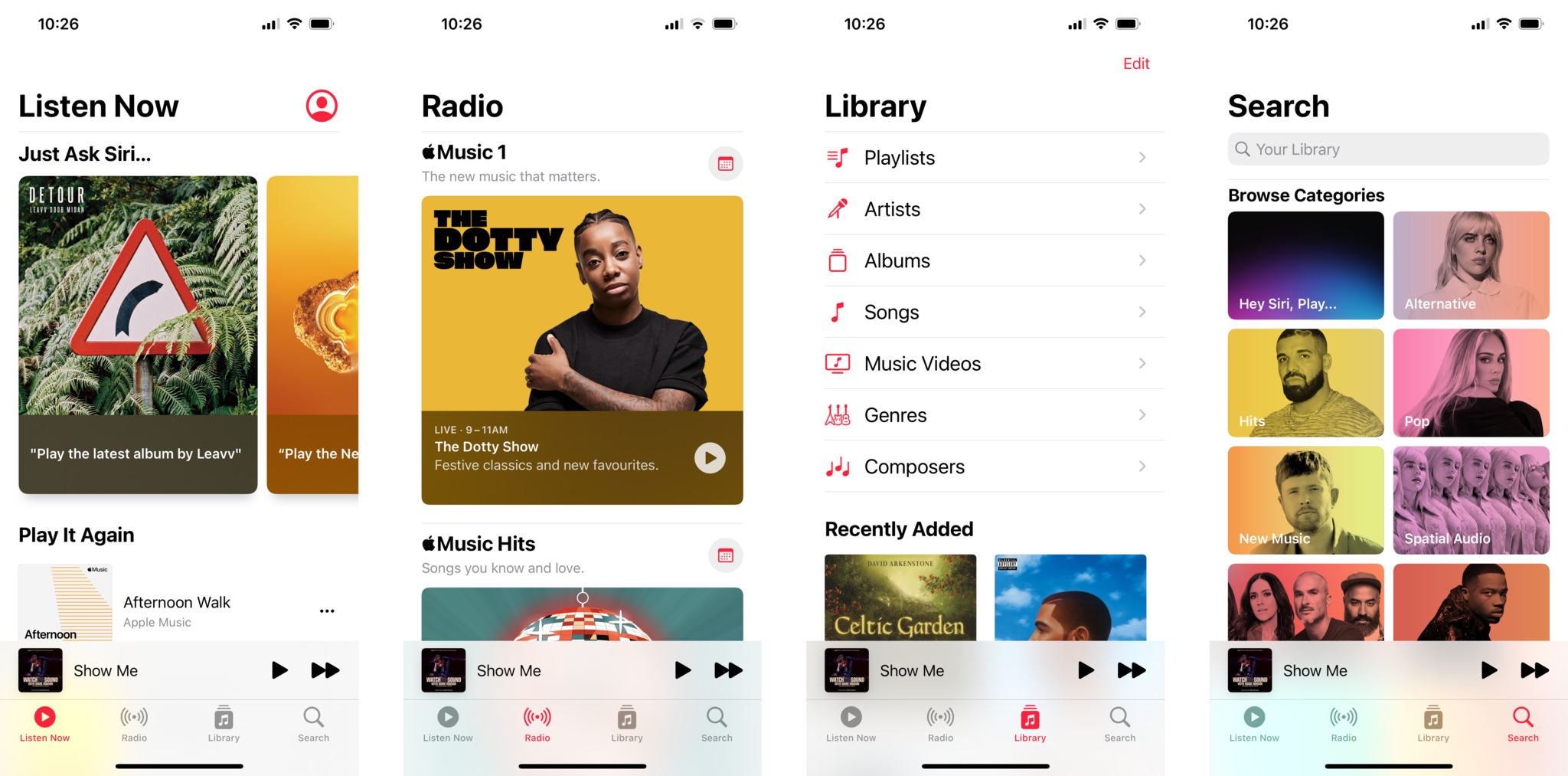
Since the Apple Music Voice Plan emphasizes using Siri to interact with the interface, the Music app does look slightly different than you're used to. You only have four tabs to navigate — Listen Now, Radio, Library, and Search — and each tab works similarly to the regular Apple Music plan.

Listen Now: This tab contains customized suggestions, playlists, and songs based on your music taste and what you've recently listened to with Apple Music. It also contains some suggestions of prompts to use with Siri right at the top.

Radio: The Radio tab offers a window into the Apple Music 1 — the 24/7 always-on radio station — as well as other Apple Music Radio stations like Apple Music Hits and Apple Music Country.

Library: This tab contains all the songs, albums, and playlists in your personal music collection. You still have full access to your collection, so any music you've bought or playlists you've created, you still have access to with the Apple Music Voice Plan.

Search: Search allows you to type in any album, song, band, or genre and find a bunch of tracks, albums, and playlists offered by Apple Music. It's a good place to browse the entire catalog, but unlike a standard Apple Music subscription, you can't play songs this way; you can only listen to previews.

How to play music with the Apple Music Voice Plan

With the Apple Music Voice Plan, you need to use Siri to play the music that isn't in your library. So if you want to listen to a specific song or album, you'll need to ask Siri. This isn't new if you've used Siri with Apple Music before. Many of the prompts are the same as the prompts you've likely used already. Here are just some ways you can use Siri to play music with the Apple Music Voice Plan.

Say something like:

  • "Hey Siri, play Blinding Lights by The Weeknd."
  • "Hey Siri, play the newest Snail Mail album."
  • "Hey Siri, play the Morning Coffee playlist."
  • "Hey Siri, play music for me."
  • "Hey Siri, play Mother Mother Essentials."

It's important to note Apple is adding hundreds of new activity-specific playlists and moods to Apple Music, so Voice Plan subscribers can find music to fit a particular mood or activity. You'll be able to say things like, "Hey Siri, play the dinner party playlist" or "Hey Siri, play something chill."

How to control playback with the Apple Music Voice Plan

When you're already playing music, you can control playback without Siri on the Now Playing screen as you typically would. Just tap your iPhone's screen, but of course, you can also use Siri to control playback if you prefer. Here are just some ways you can use Siri to control playback.

  • "Hey Siri, play."
  • "Hey Siri, pause playback."
  • "Hey Siri, next track."
  • "Hey Siri, previous track."
  • "Hey Siri, turn on shuffle."
  • "Hey Siri, repeat song."

Once again, controlling playback with Siri is pretty much the same as the other Apple music plans.

The standard Apple Music plan has access to a bit more functionality.

If you aren't liking the way the Apple Music Voice Plan works, you may want to check out how to use the Music app if you have a standard Apple Music subscription as it has more options and some more functionality.

Hey Siri, purchase Apple Music Voice Plan

Apple Music Voice Plan

Apple's newest cost-effective music subscription

If the regular Apple Music subscription doesn't seem worth it to you, you can now purchase the cheaper Apple Music Voice Plan. Although it doesn't have as many features and capabilities as the standard subscription, you still have access to the entire Apple Music library.


from iMore - The #1 iPhone, iPad, and iPod touch blog https://ift.tt/31YiUl6
via IFTTT
Thursday, December 16, 2021

I'm ready for Apple to become a force in gaming and I think Apple is too

Could 2022 be the year Apple gets serious about gaming?

The idea of gaming on Apple devices has long been an afterthought. You don't often hear the term "Mac gaming" said in any serious context and it can often be the butt of a joke in tech circles. Both consumers and developers don't often seek out the best Mac for the purpose of gaming, but what if that's changing?

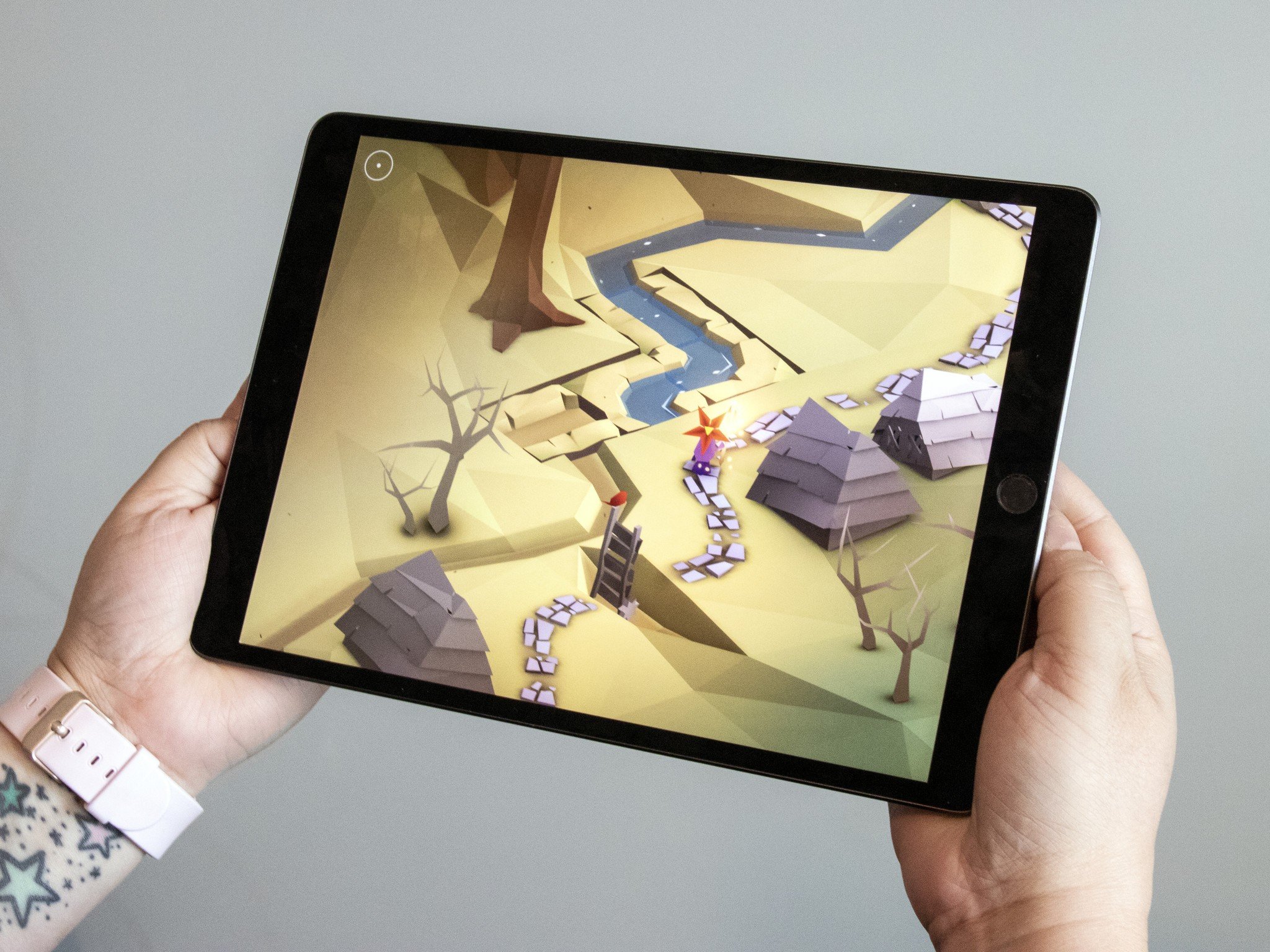
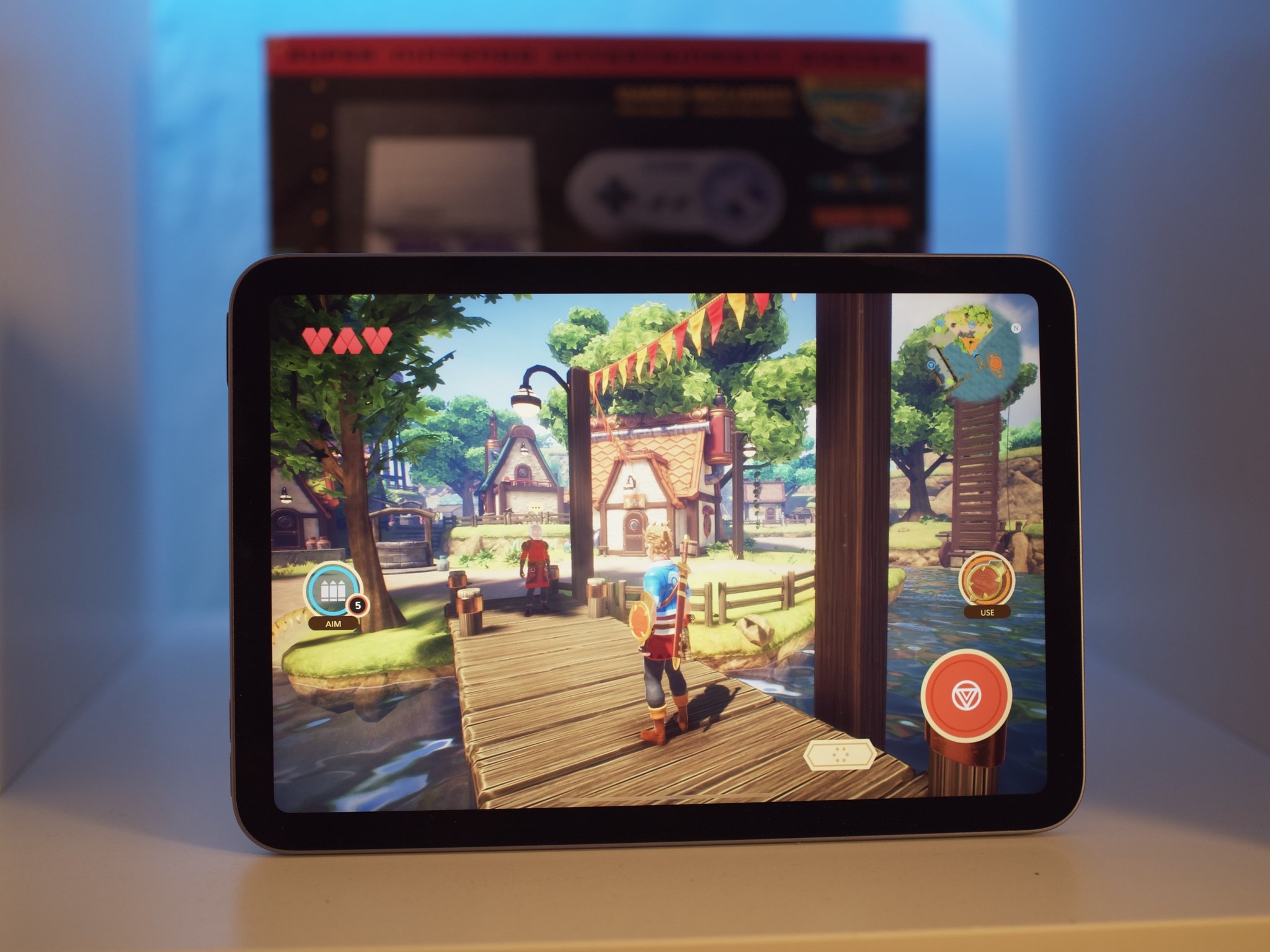
Recently, I wrote about how the iPad mini 6 is the best mobile gaming device I've ever used, and it got me thinking about the rest of Apple's product line up, and just how well-positioned the company is to make a splash in a new market.

With just how powerful Apple's M1 chips have made Macs, the continued success of Apple Arcade, and the new Apple tech rumored, Apple could take on the gaming world in 2022 and beyond.

All of Apple's devices are super powerful

All of Apple's flagship devices are very powerful. The A15 Bionic that powers the iPhone 13 lineup and the latest iPad mini 6 are super capable of running a plethora of great games, thanks to an App Store that's filled with amazing titles, and Apple's own Apple Arcade service.

It's not even just the company's hardware that's got me thinking Apple might be gaming a gaming push. We've also seen Apple open up its software to make gamers' lives a little easier in recent years. Some of the best game controllers for iPhone, iPad, and Mac are the controllers you may have sitting around your house anyway since you can use PS4, Xbox, and PS5 controllers on your Apple devices no problem. This didn't always use to be the case, and I remember needing a particular MFi controller to play games on my iPad only a few short years ago.

The frame rate isn't quite as high as it could be on a decked-out PC, but you can play on the highest visual settings on an M1 Mac with 16GB of RAM.

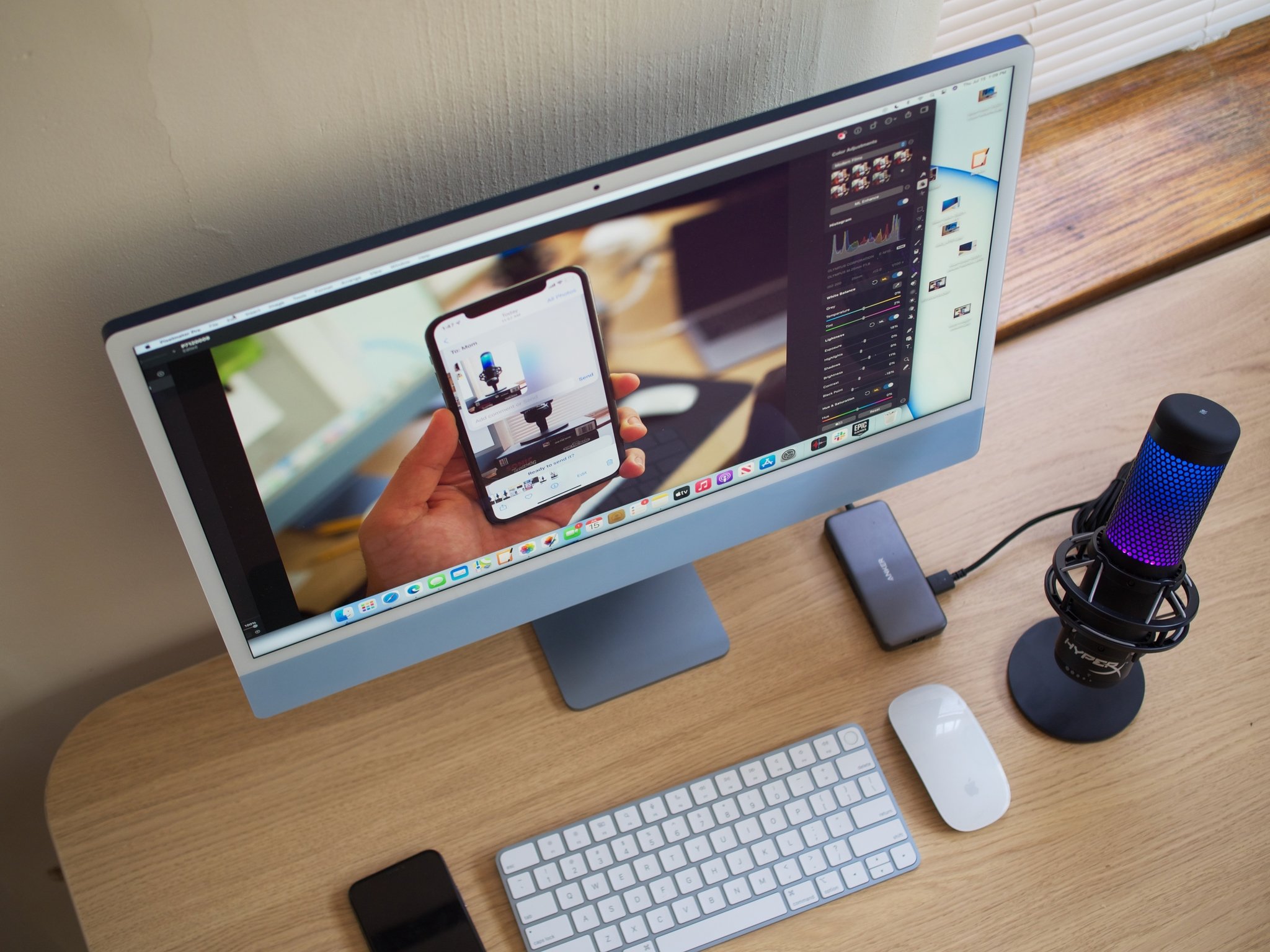
Of course, when it comes to the Mac, you have the M1, M1 Pro, and M1 Max, all of which have been providing crazy performance enhancements to Macs since last year. Speaking from first-hand experience, I have done more gaming on my iMac (2021) than any other Mac I have ever owned, and it's not just small titles either. I've been playing Baldur's Gate III on my M1 iMac and have been loving every minute of it. The gameplay has been mostly smooth, and I haven't encountered any significant problems while playing the game — especially since Larian Studios has released a few updates now that superficially increase performance on the M1 chips.

Now, it isn't a completely flawless experience — the frame rate isn't quite as high as it could be on a decked-out PC, but you can play on the highest visual settings on an M1 Mac with 16GB of RAM. Remember, that's only the M1; I would have to imagine the M1 Pro and M1 Max on the MacBook Pro models would be able to deliver an even smoother experience.

As I have been playing Baldur's Gate III, various indie titles, and a ton of Apple Arcade games on my iMac (2021), it's made me realize that I can say the phrase "Mac gaming" with a straight face. I have to imagine this is only the beginning.

Apple's headset to focus on gaming

Hopefully, Apple Glasses look cooler than this.

My optimism for gaming on Apple devices is not just centered around the current powerhouse devices they have been putting out lately, but also on rumors about what's coming next.

We've been hearing a ton of buzz about Apple's VR/AR headset recently, including the fact that one of its major focuses will be gaming. VR gaming has been the hot new gaming craze now that it has finally become cheap enough for mere mortals to get their hands on.

I'm really curious to see what Apple does with the "Apple Glasses" (or whatever it ends up being called) because Apple doesn't enter a new market lightly. The Apple Watch, AirPods, and AirTag all shook up the market when they launched. Will Apple Arcade be extending to VR games? Will Apple be securing the same titles that we see on other gaming headsets like Oculus/Meta? Could Apple be planning its own Metaverse? The options seem endless, and it's really exciting to guess what Apple has planned for the future.

It won't be an easy road, but Apple is up to the task

Now, I understand that Apple can't just snap its fingers and all of a sudden be competing with Sony, Microsoft, and the other gaming giants of the world. After many years of gaming on Apple devices being mostly an afterthought, it's going to take some real effort to attract both developers and consumers if Apple wants to make a splash in the gaming world. But, Apple does have a couple of advantages.

It's going to take some real effort to attract both developers and consumers if Apple wants to make a splash in the gaming world.

First, Apple Arcade has been going strong now for a couple of years and has produced some of the best mobile games ever — even awesome indie titles like The Pathless have already made their way onto the service. So, it's not like Apple is starting from square one when it comes to developer relations. Not only that, but with the addition of cloud gaming services, like xCloud and Stadia, it's not like Apple doesn't have the option to heavily promote their hardware (especially iPads) as being the perfect way to experience those services.

And, second, Apple has a ton of money. It's probably one of the best-positioned companies to make a big splash in almost any market it decides to enter. Maybe Apple buys up a few game studios and starts making games specifically for its products? Is there any indication that's going to happen? Not so much, but it could happen; Apple has the resources if they want to take a leap of faith. Heck, maybe all it takes is Apple to design a special gaming edition of the iPad or iPhone that has a few extra features, like a fan to help with cooling, that will make the already fantastic hardware even better for gaming.

One thing is for sure, the future is wide open with possibilities, and while I'm going to try not to set my expectations too high, I'm so excited to see what Apple has in store for gaming in 2022 and beyond.


from iMore - The #1 iPhone, iPad, and iPod touch blog https://ift.tt/31V8UJj
via IFTTT

A hardshell case for your MacBook Pro is protective and stylish

One of the best ways to protect your MacBook Pro, including the latest MacBook Pro with M1 Max or Pro chip or the MacBook Pro with M1 chip, is with a hardshell case. These cases offer scratch and drop protection, and they can often lend a touch of your style to your laptop. These are your best options to both protect and beautify the MacBook Pro, one of the best MacBooks you can buy.

Before checking out, make sure you choose the correct size and model of your MacBook Pro (13, 14, 15, or 16 inches). The late 2020 M1 13-inch MacBook Pro is the same size as the one released earlier in 2020, so those cases are interchangeable. However, the 2021 models are thicker than their predecessors, so cases must be model-specific.

Top pick

IBENZER MacBook Pro 13 Inch Hard Plastic Case

Staff Favorite

If you're looking for a simple, clear, basic snap-on case for your 2016-2020 MacBook Pro, this is the one. The hard plastic case protects from scratches and bumps, but you can still see the Apple logo through the case. The keyboard cover is included. In addition, to be clear, there are lots of other colorful options.

13-inch from $17 at Amazon

15-inch from $16 at Amazon

13-inch, 15-inch, and 16-inch from $30 at Best Buy

Heavy duty

MOSISO MacBook Pro Heavy Duty Plastic Hard Shell Case

If you need your MacBook Pro to survive a bit more of the rough-and-tumble, then you'll want a rugged case like this one. The hard case with a TPU bumper features a shock-absorbing beveled ridges design. It comes in two colors. Choose either the 13-inch or 16-inch model up to the 2020 versions.

13-inch: From $28 at Amazon

16-inch: From $30 at Amazon

Fun designs

Ueswill Matte Hard Case for MacBook Pro - colors vary

Ueswill offers solid colors plus a bunch of fun designs, including floral and marble patterns, as well as various graphics of space, nature, and more. You'll love the smooth, soft-touch finish. This case comes in three sizes: the 2016-2019 13-inch model, the 2016-2019 15-inch model, and the 2019 16-inch model.

From $14 at Amazon

So. Many. Designs.

KECC Laptop Case

Let your personality shine through with KECC's hardshell MacBook Pro cases, which feature beautiful, bright, and colorful designs and patterns. Each has rubberized feet to hold your laptop in place while you type, and the bottom shell is vented so that it doesn't overheat. Choose from either the 13-inch, 15-inch, or 16-inch model, 2016-2020 models.

13-inch or 15-inch: $20 at Amazon

15-inch or 16-inch: $20 at Amazon

Luxurious option

Andar - The Helm

If you have little interest in covering your MacBook Pro with plastic, consider this high-end option. The Helm is smooth oil-waxed full-grain leather and lined with microfiber on the inside for inner protection. This snap-on case will elevate the look and feel of your laptop. It comes in four colors and all MacBook Pro sizes from 2016-2020.

From $120 at Andar

Even more colors

MOSISO Case

This ultra-slim lightweight hard case adds minimal weight to your MacBook Pro. It's available in an assortment of colors and all three MacBook Pro sizes, 2016-2020. A matching keyboard cover is included.

2020 13-inch from $16 at Amazon

2021 14-inch from $22 at Amazon

2019 15-inch from $25 at Amazon

2020 16-inch from $22 at Amazon

2021 16-inch from $23 at Amazon

So many great hardshell case choices

These are the best hardshell cases we've found for the MacBook Pro. Each is available in multiple styles -- some traditional, others a little bit more creative or unique. Regardless, each of these cases is tough and will protect your investment against bumps and scratches. Many come with extra goodies such as keyboard covers to provide even more protection. Another nice thing about using a hardshell case is that you can go ahead and put all of your fun stickers and decals on it, no need to worry about damaging your computer. You can just get a new case if you tire of the decals.

A hardshell case is the best and perhaps the simplest way to make sure your MacBook Pro makes it through the day in one piece. It doesn't get better for the pragmatic folks than IBENZER MacBook Pro 13 Inch Hard Plastic Case's myriad options.

If you have the 2021 M1 Max or Pro version, go with the MOSISO Case, which comes in the appropriate size. You can also look into other kinds of great MacBook Pro cases.

Be sure to double-check your MacBook Pro's model number before you purchase a case. Most listings will let you know the exact model that the case will fit. Check twice; order once!


from iMore - The #1 iPhone, iPad, and iPod touch blog https://ift.tt/2sf0WWA
via IFTTT
Wednesday, December 08, 2021

Scan text from anywhere into your iPhone and iPad — here's how

Scan text directly into any text field on your iPhone or iPad — here's how!

Have you ever been written a note and you want to send the contents of that note to someone? Maybe you could send just a photo of the note, but reading off an image can be tricky. Now, there's a better way.

in iOS 15 and iPadOS 15, you can scan text directly into any text field on your iPhone and iPad using the camera. You can even scan handwriting, meaning your best iPhone can do even more!

How to scan text directly into documents on iPhone and iPad

You can scan text into virtually any text field that pops up on your iPhone or iPad. For this example, I'm just using the Notes app, but this will work in Safari, Twitter, Reddit, and so many other apps.

  1. Navigate to the text field you want to scan text into.
  2. Tap the cursor in that text field.
  3. Tap the Scan text button in the action menu. It looks like a square with lines through it.
  4. Move your iPhone or iPad into position so the camera can see the text you want.
  5. Tap Insert when the text you want is highlighted.

Boom! Just like that, the highlighted text will appear in your text field, and from there, you can reformat, add more text, or do any editing you want just as you usually would.

Don't forget about Live Text

Knowing how to scan text into your iPhone or iPad is great, but iOS 15 and iPadOS 15 also support Live Text, which lets you copy text from photos or within the Camera app. It can even scan and copy handwriting as well, so don't forget to learn how to use Live Text on iPhone and iPad to make your life even easier.


from iMore - The #1 iPhone, iPad, and iPod touch blog https://ift.tt/3Gp23Gr
via IFTTT
Monday, December 06, 2021

Having a hard time waking up? Here's how to set an alarm on your iPhone.

Never be late again — set an alarm on iPhone or iPad!

If you're the kind of person who has a hard time being on time, then you need to use the Clock app and set alarms on your iPhone or iPad. Sure, you can always get one of the best clock radios for your house, but having an alarm set on your iPhone or iPad will help you never miss an appointment again. And don't worry, you can always hit the snooze button.

How to set alarms on iPhone or iPad

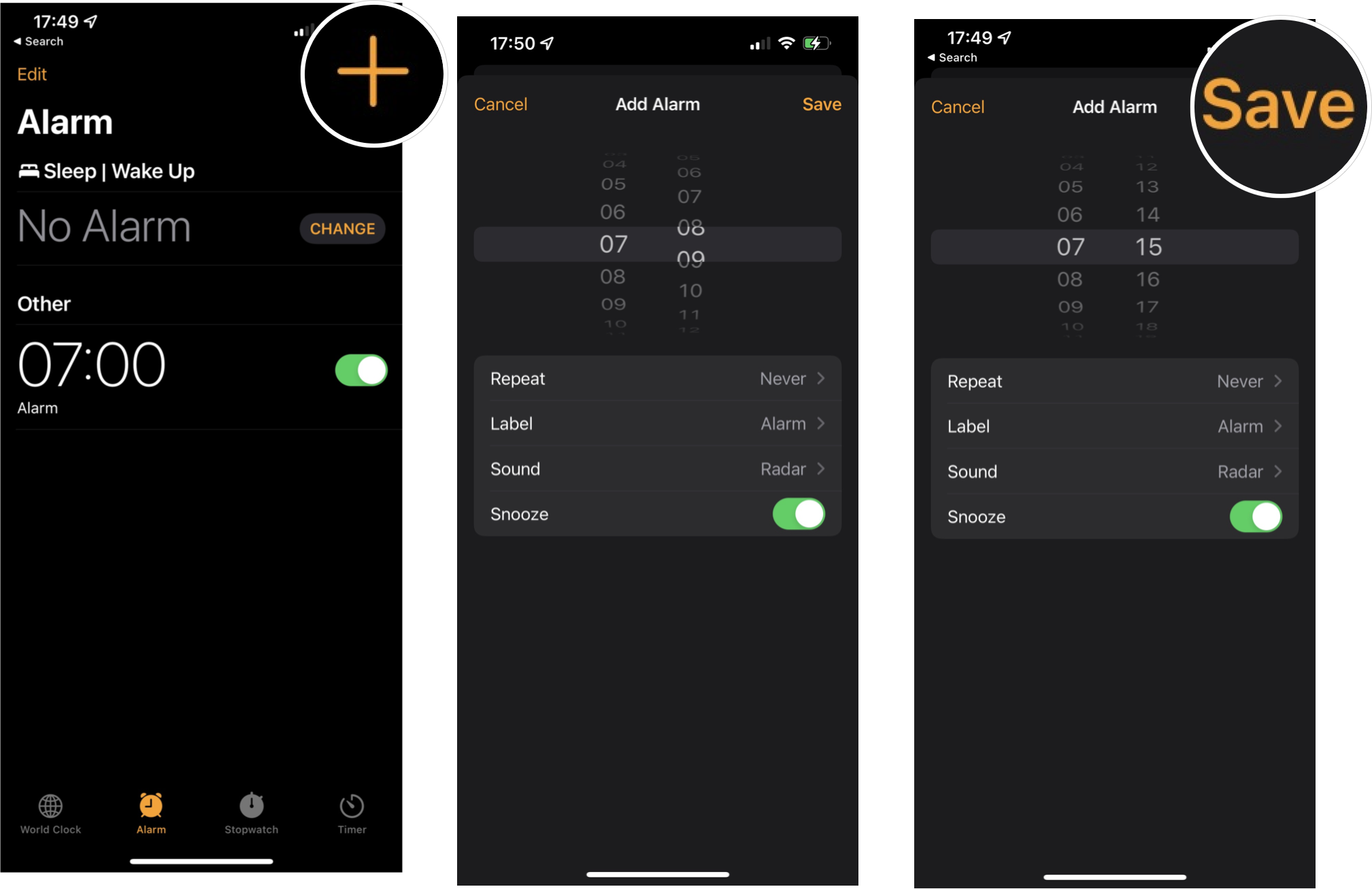
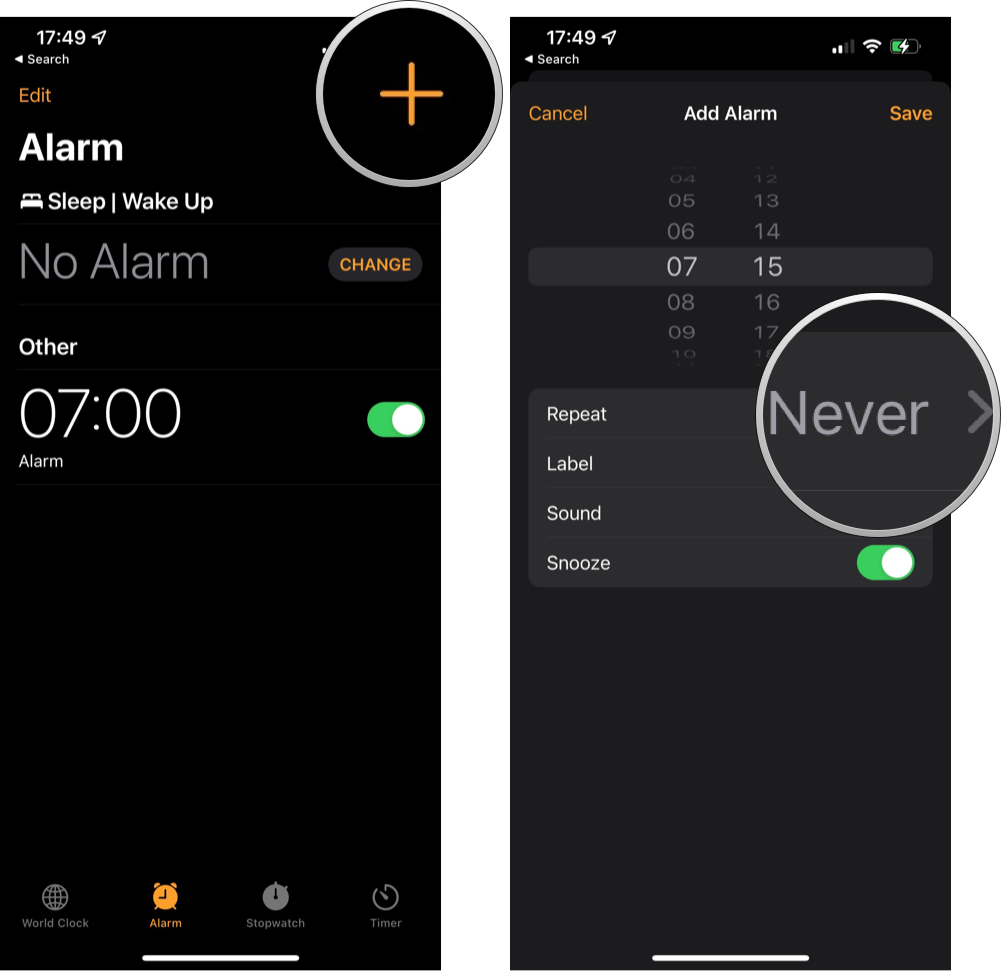
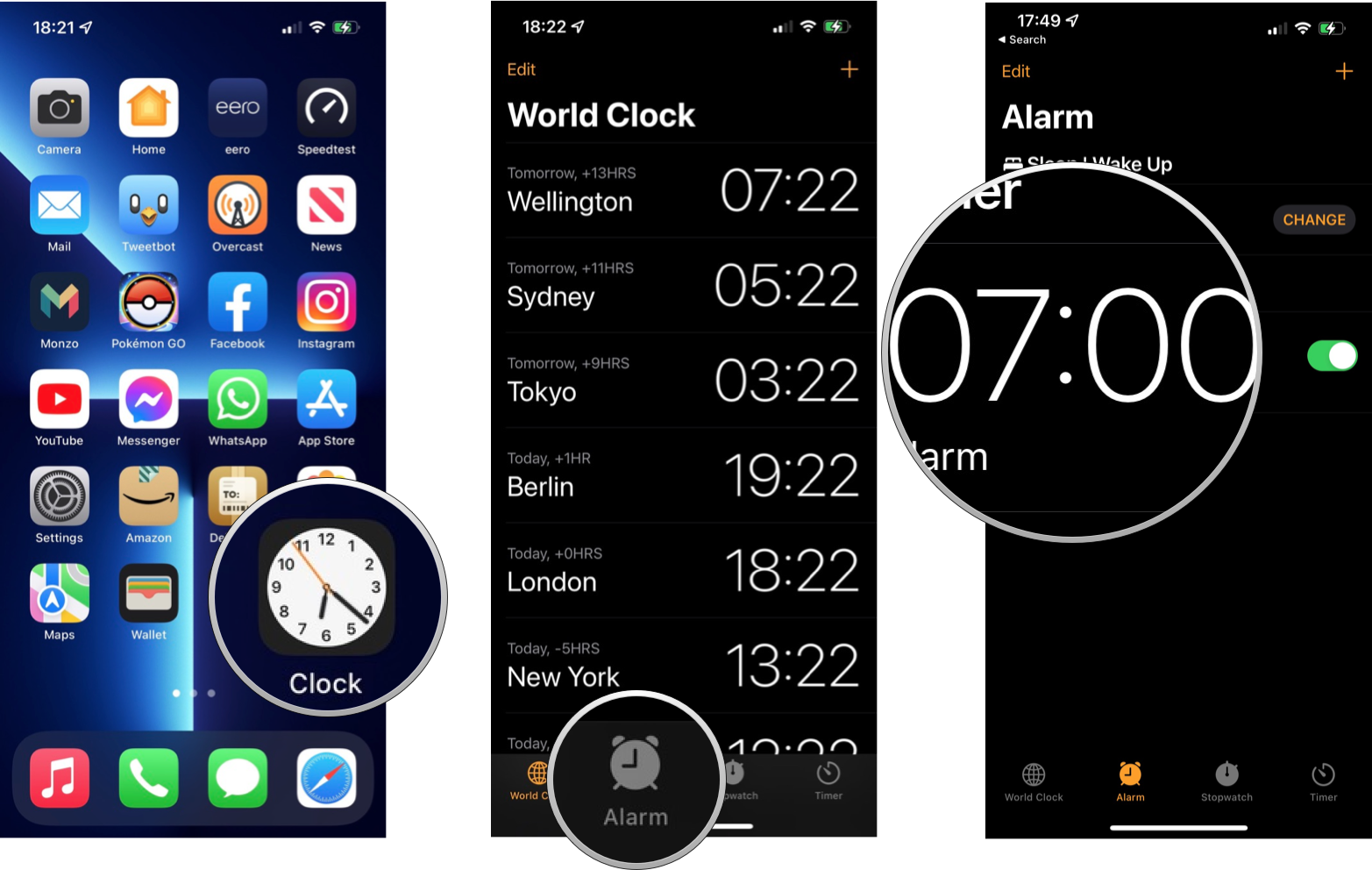
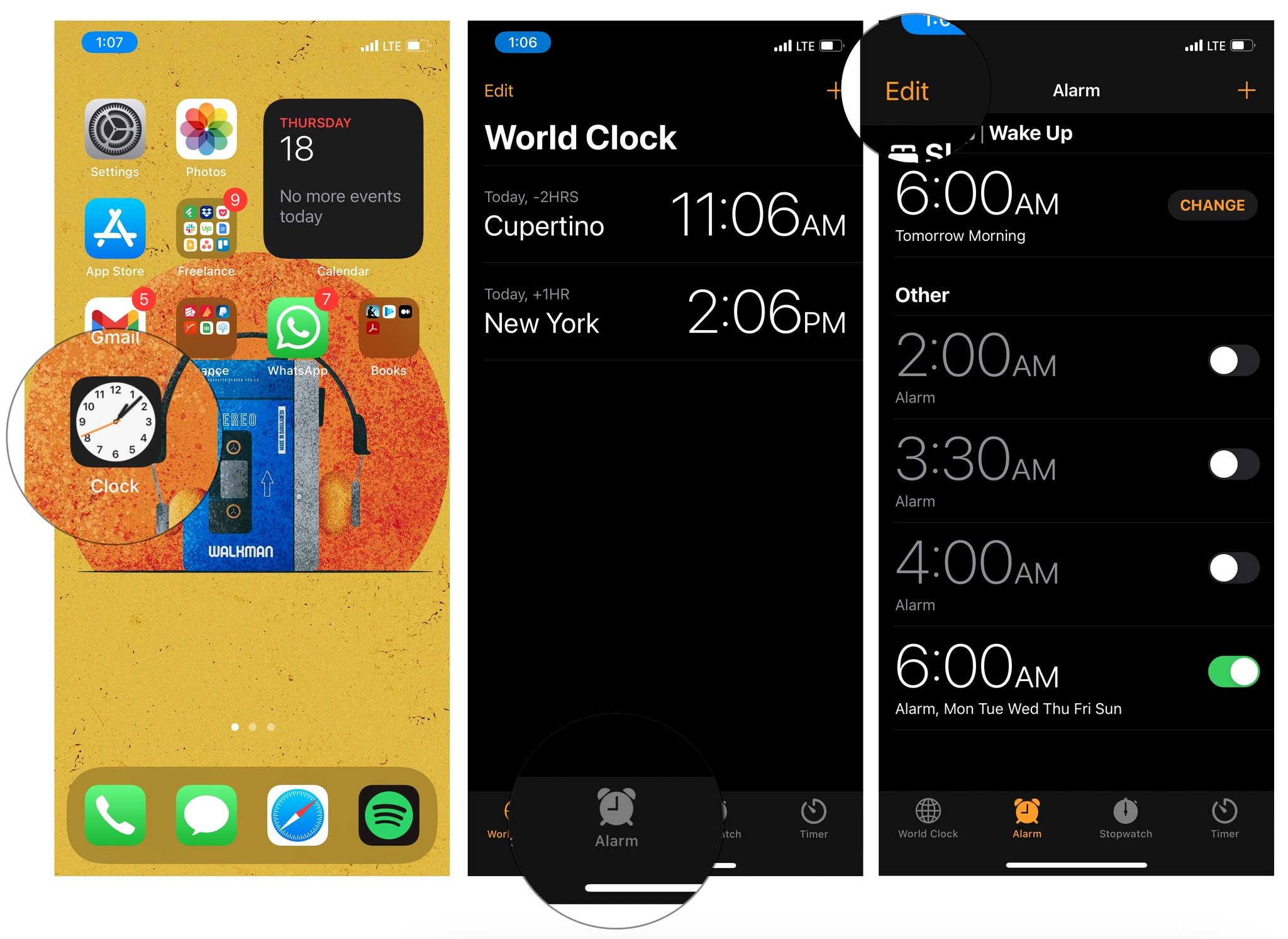
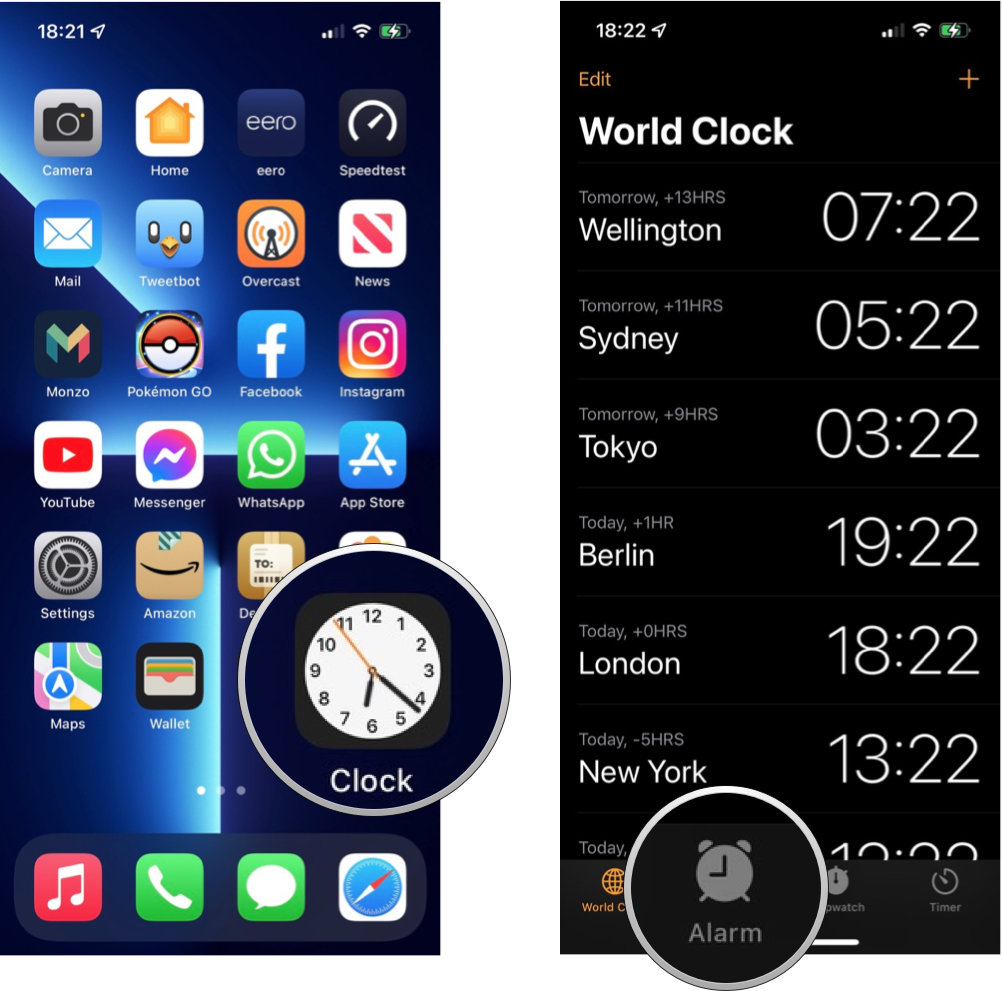
  1. Launch the Clock app.
  2. Tap on the Alarm tab. It's the second icon from the bottom left corner of your screen that looks like an alarm clock.

  3. Tap on the + icon to add a new alarm.

  4. Swipe up and down on the picker to select hour, minutes, and AM or PM.
  5. Tap Save on the top right of your screen.

Your newly created alarm will now appear on the Alarm screen and is automatically turned on. Using your iPhone with iOS 15 as an alarm clock to wake you from your beauty sleep is an extremely common practice. The alarm will still sound loud-and-proud if your phone is on silent mode or even Do Not Disturb mode, ensuring you can rest easy knowing you will be woken up on time. Fair warning, though, we cannot guarantee you will wake up on the right side of the bed!

How to turn on an alarm on your iPhone or iPad

When you set a new alarm, it will automatically be turned on, but it will turn off once an alarm has sounded. If you want to use it again, you will have to manually turn it back on.

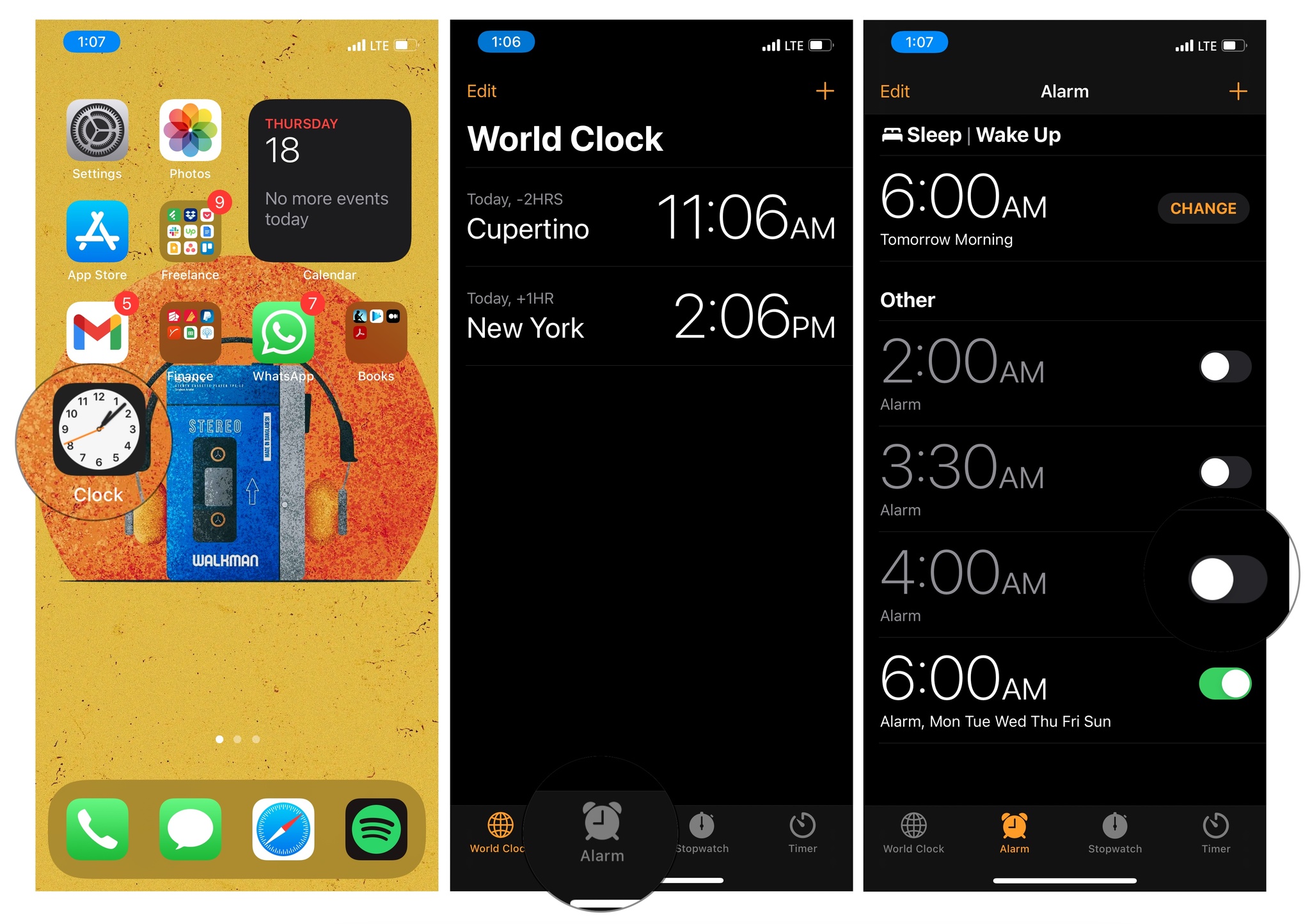
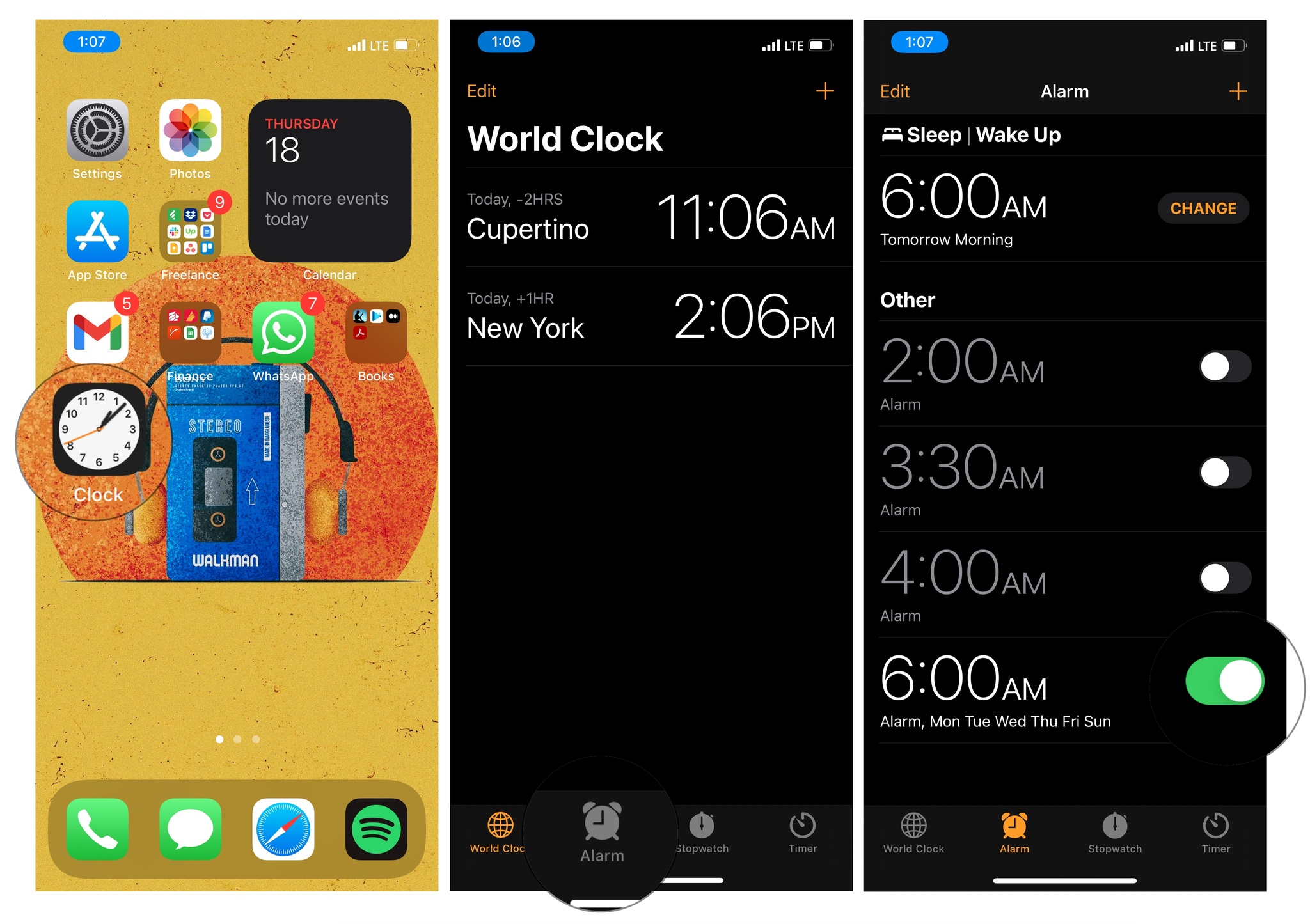
  1. Launch the Clock app from your Home screen.
  2. Tap on the Alarm tab. It's the second icon from the bottom left corner of your screen that looks like an alarm clock.
  3. Tap the switch next to the alarm you want to turn on. Green is on.

How to turn off an alarm on your iPhone or iPad

When you set a new alarm, it will automatically be turned on, but that does not mean you have to wait till it rings to turn it off. Alarms can be turned off at any time you desire.

  1. Launch the Clock app from your Home screen.
  2. Tap on the Alarm tab. It's the second tab from the bottom left corner of your screen that looks like an alarm clock.
  3. Tap the On/Off switch on the alarm you want to turn off. It's the white circle on the right side of your screen.

How to set a repeating alarm on your iPhone or iPad

Do you wake up every day at the same time? Have a weekly appointment you need to keep? Setting a repeating alarm takes away the stress of forgetting to turn on your alarm every time you need it. Just set it and forget it!

  1. Launch the Clock app from your Home screen.
  2. Tap on the Alarm tab. It's the second icon from the bottom left corner of your screen that looks like an alarm clock.

  3. Tap the + button on the top right of your screen.

  4. Swipe up and down on the pickers to choose a time and AM/PM.
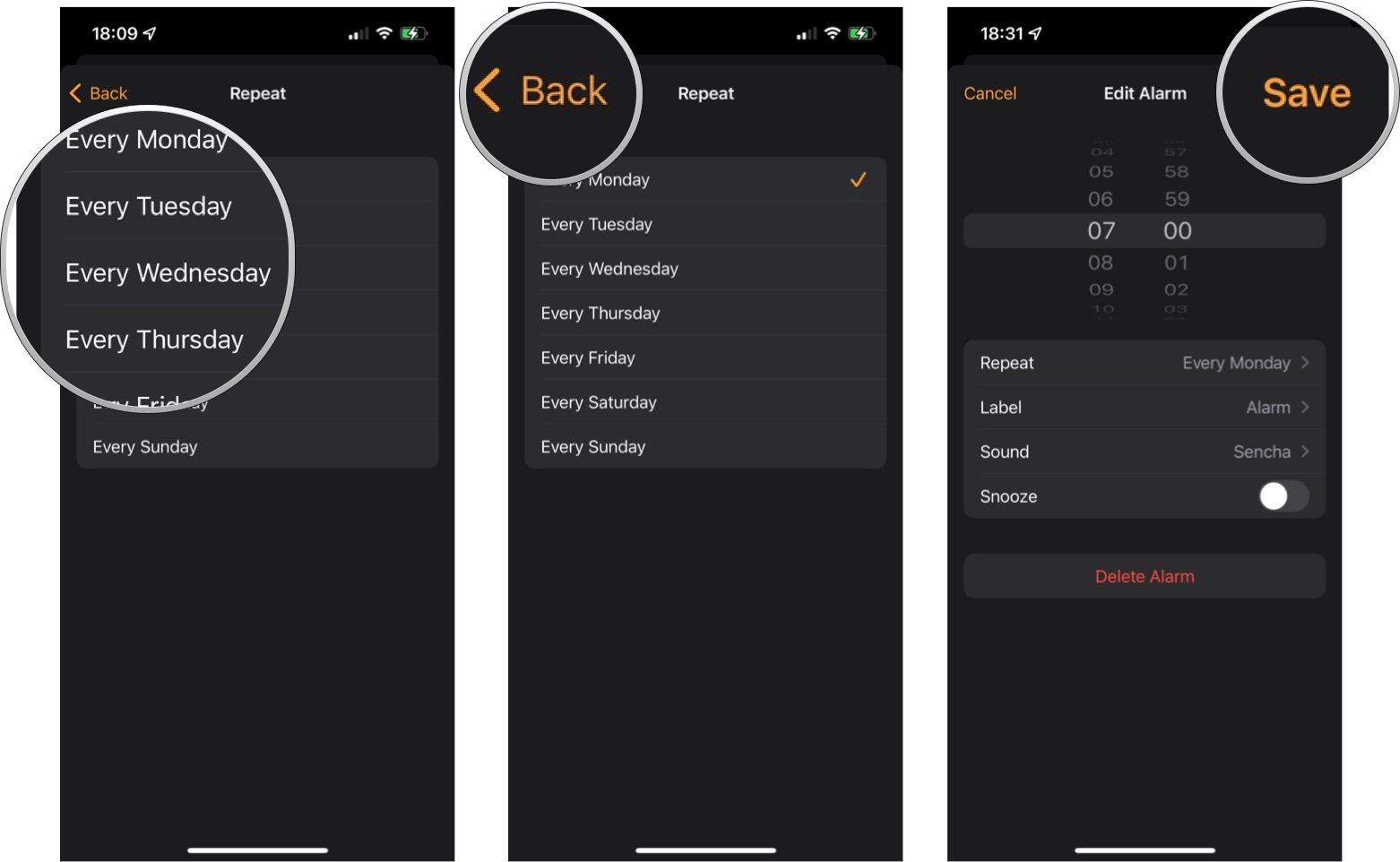
  5. Tap Repeat. It's the first item below the time.

  6. Tap on the day or days of the week on which you want the alarm to repeat.

  7. Tap the Back button. It's located in the top left corner of your screen.
  8. Tap the Save button. It's located in the top right corner of your screen.

You can also set an alarm to repeat by editing an existing alarm.

How to edit an alarm time on your iPhone or iPad

Your boss calls you to tell you that you can come into the office late tomorrow. After fist pumping furiously for the appropriate amount of time to celebrate your incredible luck, you are going to want to push back that 5 AM alarm you usually use to a more reasonable time.

  1. Launch the Clock app from your Home screen.
  2. Tap on the Alarm tab. It's the second tab from the bottom left corner of your screen that looks like an alarm clock.

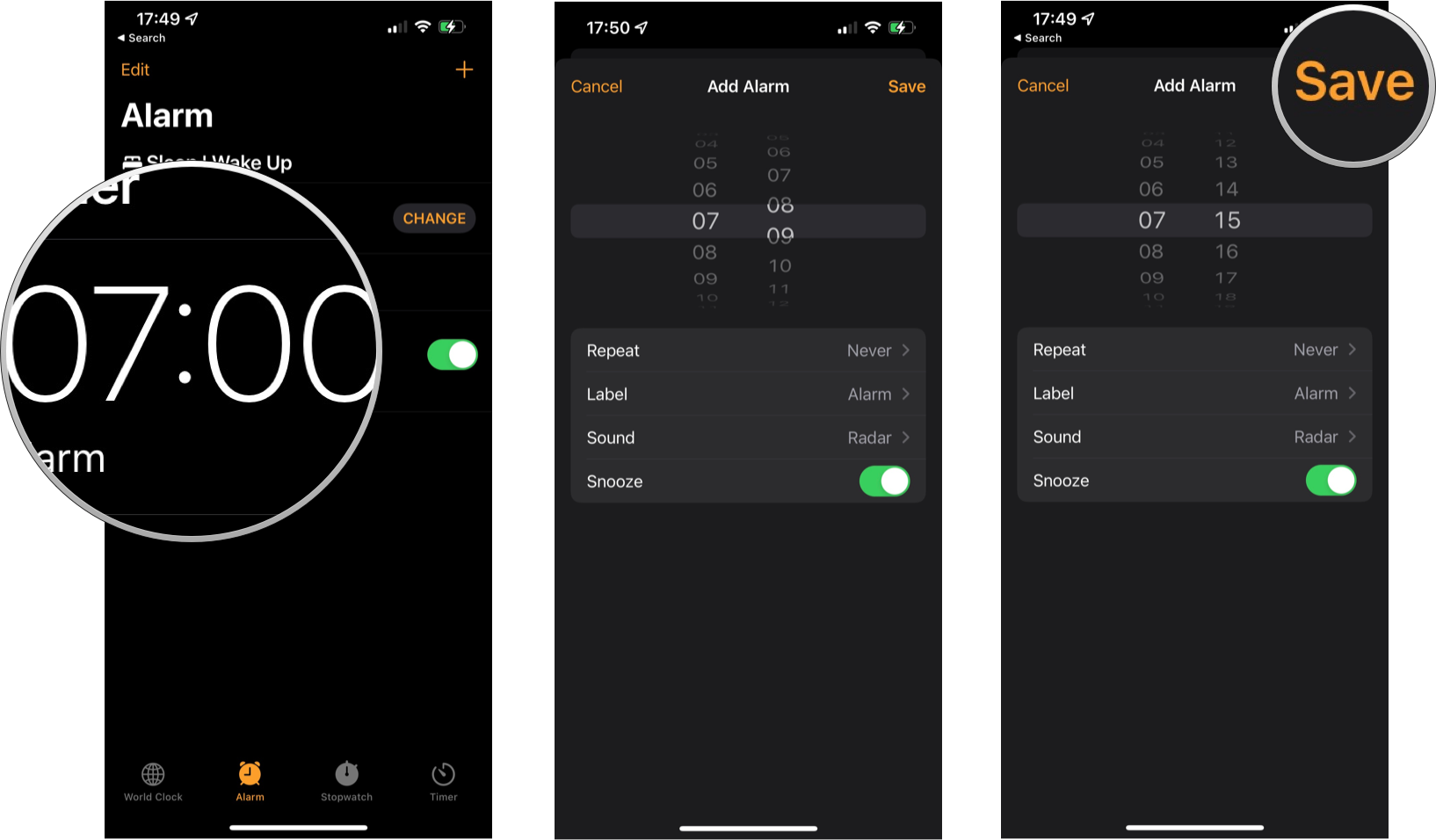
  3. Tap on the Alarm you want to change.
  4. Swipe up and down on the pickers to set the hours, minutes, and AM/PM to reflect the new time you want your alarm to ring.
  5. Tap the Save button. It's located in the top right corner of your screen.

There you have it. Now you can wake up at a more reasonable time. You can also use these steps to change any other settings associated with that alarm, such as the label, sound, the ability to snooze the alarm, and even if it repeats.

How to label an alarm on your iPhone or iPad

You can name your alarms so that a message will pop up when they sound off. Labeling your alarms is a great way to remind yourself of things. If you want to set an alarm to remind you to take medication at a specific time or to catch your favorite show on TV, labeling your alarms is a great way to get your attention.

  1. Launch the Clock app from your Home screen.
  2. Tap on the Alarm tab. It's the second tab from the bottom left corner of your screen that looks like an alarm clock.
  3. Tap on the alarm you want to re-label.

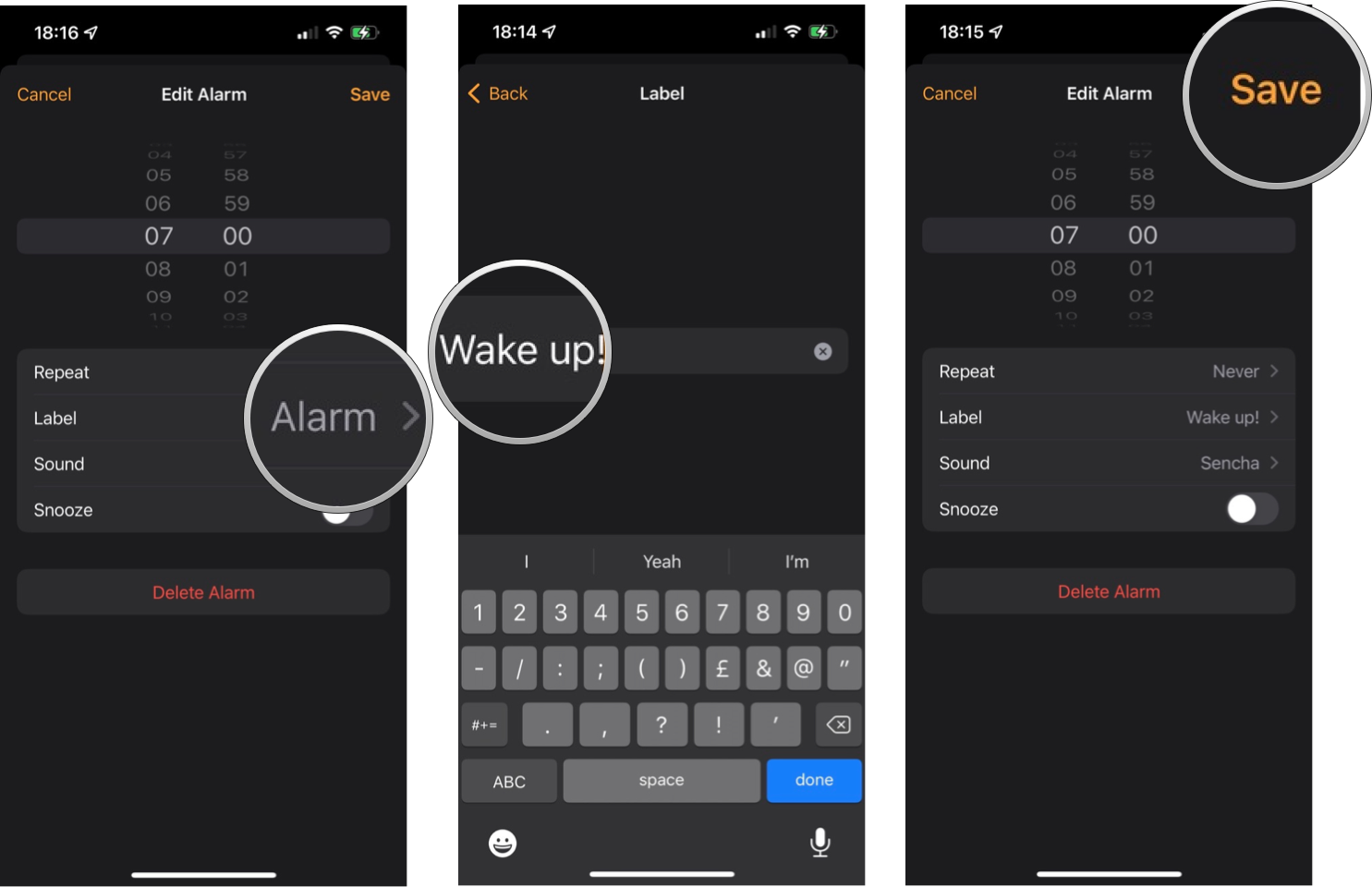
  4. Tap on the Label button.
  5. Use the keyboard to delete the default label.
  6. Type in your desired label.
  7. Tap the Done button. The blue button in the bottom right corner of your keyboard.
  8. Tap Save in the top right corner.

You can also choose to label an alarm as your setting it.

How to change the alarm sound on your iPhone or iPad

Apple has preloaded the best iPad and iPhone with a bunch of alarm sounds to choose from; the only real question is what sound to choose?

  1. Launch the Clock app from your Home screen.
  2. Tap on the Alarm tab. It's the second tab from the bottom left corner of your screen that looks like an alarm clock.
  3. Tap on the Alarm you want to sound different.

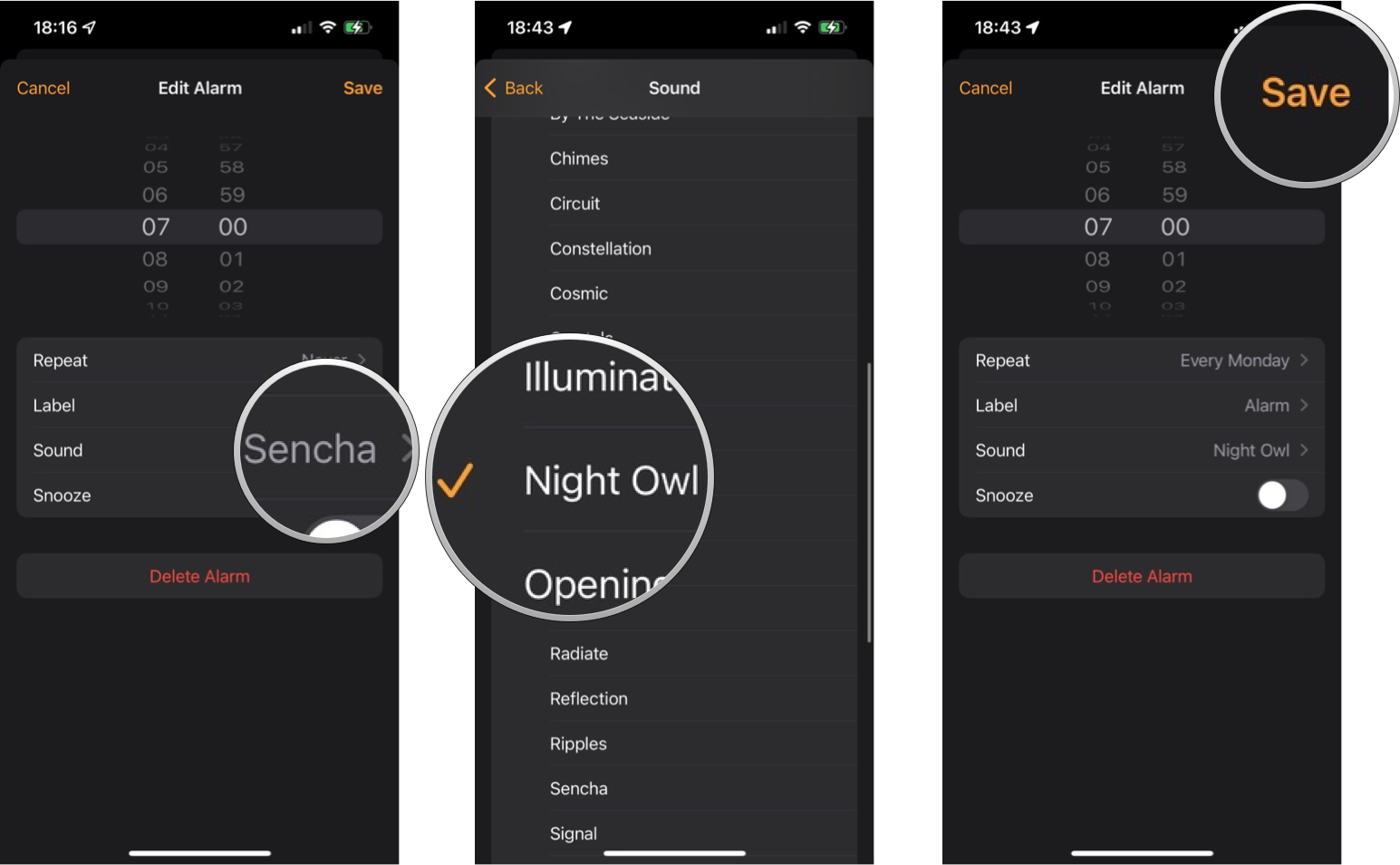
  4. Tap Sound.
  5. Swipe up or down to find the sound you want.
  6. Tap on the sound you want. This will also preview the sound you selected.
  7. Tap on the Back button. It's located in the top left corner of your screen.
  8. Tap Save in the top right corner.

How to set a custom alarm sound on your iPhone or iPad

If the built-in alarm sounds just aren't up to your standards, you can easily change your alarm sound to a song. So not only will you wake up on time but will also wake up singing and dancing.

  1. Launch the Clock app from your Home screen.
  2. Tap on the Alarm tab. It's the second tab from the bottom left corner of your screen that looks like an alarm clock.
  3. Tap on the Alarm you want to sound different.

  4. Tap Sound.
  5. Scroll up to the top of the list.
  6. Tap Pick a song.
  7. Tap a search option:

    • Albums
    • Artists
    • Songs
    • Music Videos
    • Genres
    • Composers
    • Compilations
    • Playlists

  8. Tap the song you want to use as your alarm.
  9. Tap the Back button.
  10. Tap Save in the top right corner.

You can choose any song that you have purchased or synced onto your device as an alarm tone. Unfortunately, you can't pick music streaming from Apple Music for a custom alarm tone.

How to stop or snooze an alarm on your iPhone or iPad

Your alarm is blaring as loud as it can — it's time for you to stumble out of bed and join the land of the living. If you don't want your alarm to be screaming all day long, or want to silence it and get back to your peaceful slumber, here is how you can turn it off. The steps are slightly different depending on if your phone is locked or not, so we will show you both ways.

How to turn off a ringing alarm on the Lock screen

  • Tap Stop.

How to turn off an alarm while using your iPhone or iPad

If you're in another app, your alarm will still sound and appear as a banner at the top of your screen.

  • Tap the alarm banner.

How to snooze a ringing alarm on your iPhone or iPad on the Lock screen

  • Tap on Snooze.

Note that you cannot snooze an alarm if it goes off while you're not on your Lock screen.

How to delete an alarm on your iPhone or iPad

Although you can set as many alarms as you want, it's probably a good idea to delete them once you don't need them anymore to avoid unnecessary clutter.

  1. Launch the Clock app from your Home screen
  2. Tap on the Alarm tab. It's the second tab from the bottom left corner of your screen that looks like an alarm clock.
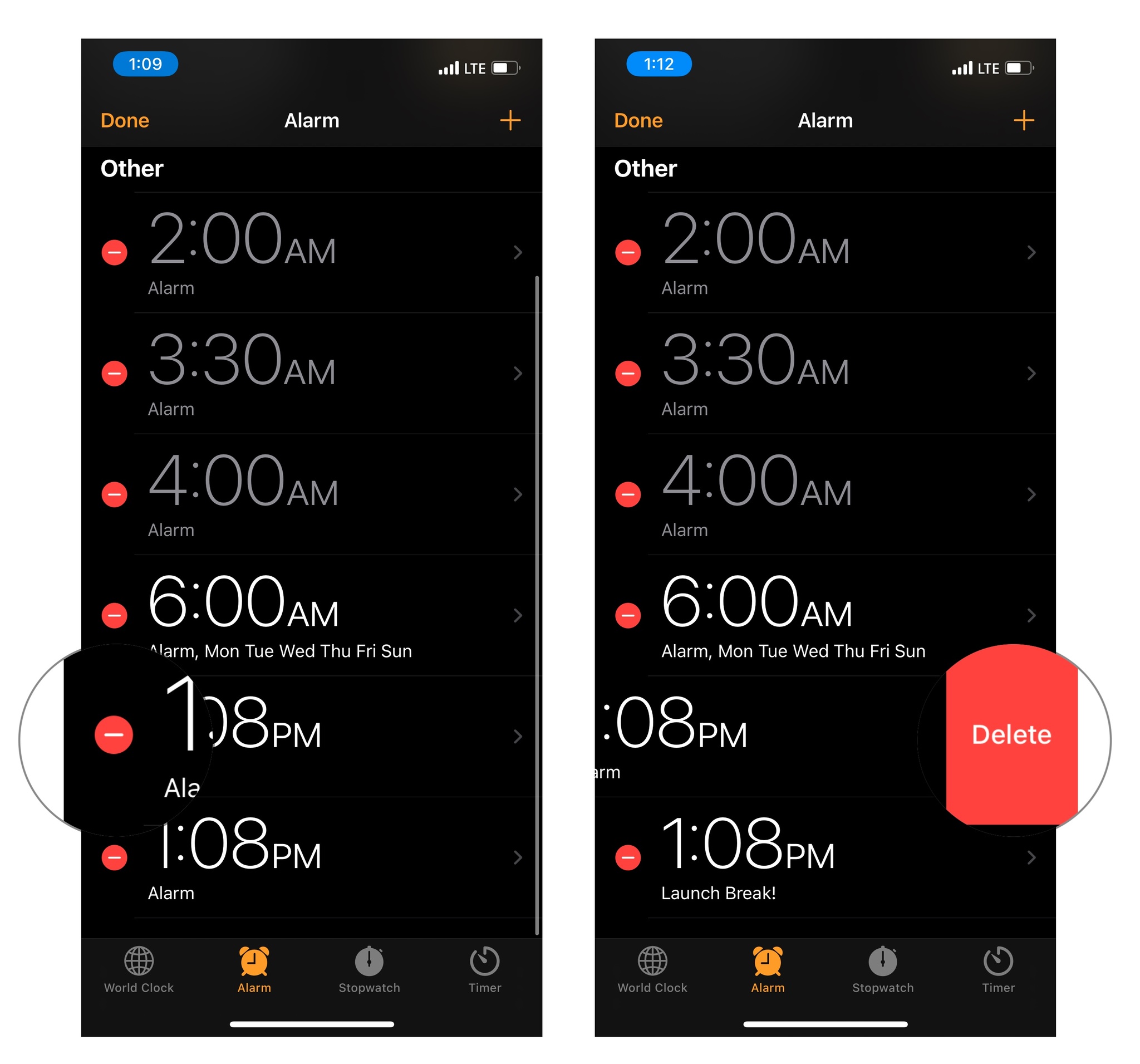
  3. Tap Edit on the top left of your screen.

  4. Tap the delete button next to the alarm you want to delete. It looks like a red circle with a subtraction symbol in it.

  5. Tap Delete.

Now you don't have to keep around all those old alarms which will save you time searching through a bunch of useless clutter.

Your iPhone or iPad is the best alarm clock

Since it's with you no matter where you go, and you probably charge it by your bed each night, your iPhone is perhaps the best device to use as an alarm clock. It's easy to set an alarm, choose the days and times you want it to go off, customize the alarm sound, and more from within the built-in Clock app, so you never have to worry about being late again.

Updated November 2021: Updated for iOS 15.


from iMore - The #1 iPhone, iPad, and iPod touch blog https://ift.tt/3uxAMwl
via IFTTT